
How to take a screenshot on Google Pixel?
Power + Volume Down, Capture more for scrolling screenshots, where Pixel saves captures, and what to try if a screenshot does not work.
How to take a screenshot on Google Pixel?
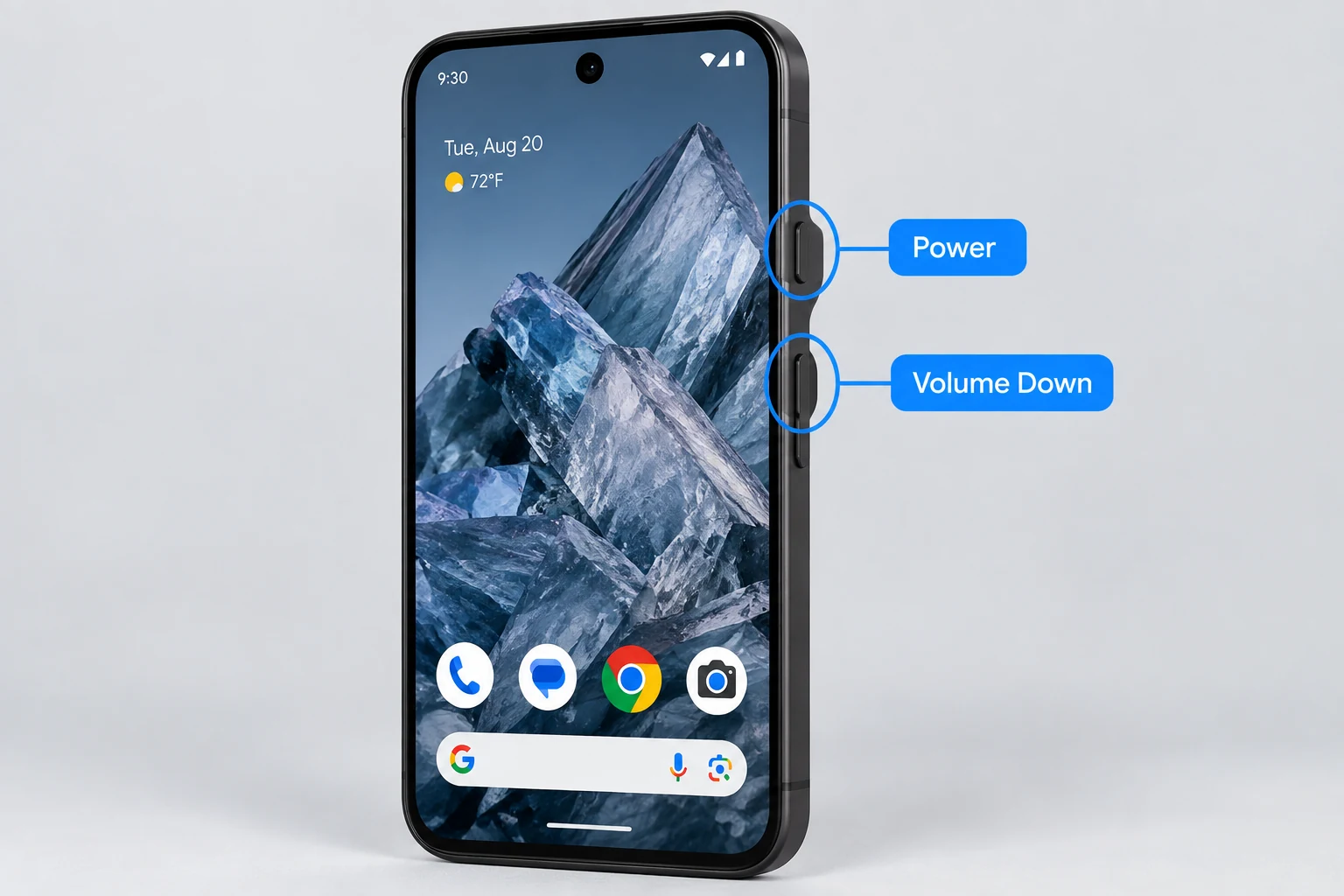
Open the screen you want to capture, then press the Power and Volume Down buttons at the same time and release them. A preview appears near the bottom of the screen. Tap the preview to edit or share it, or leave it alone to save the screenshot.
Can I screenshot from Recent apps on Pixel?
On supported Pixel/Android versions, open the recent-apps overview and use the Screenshot action when it is shown. This can be convenient when the physical buttons are difficult to press. The exact placement can change with Android versions and navigation mode.
How to take a scrolling screenshot on Pixel?
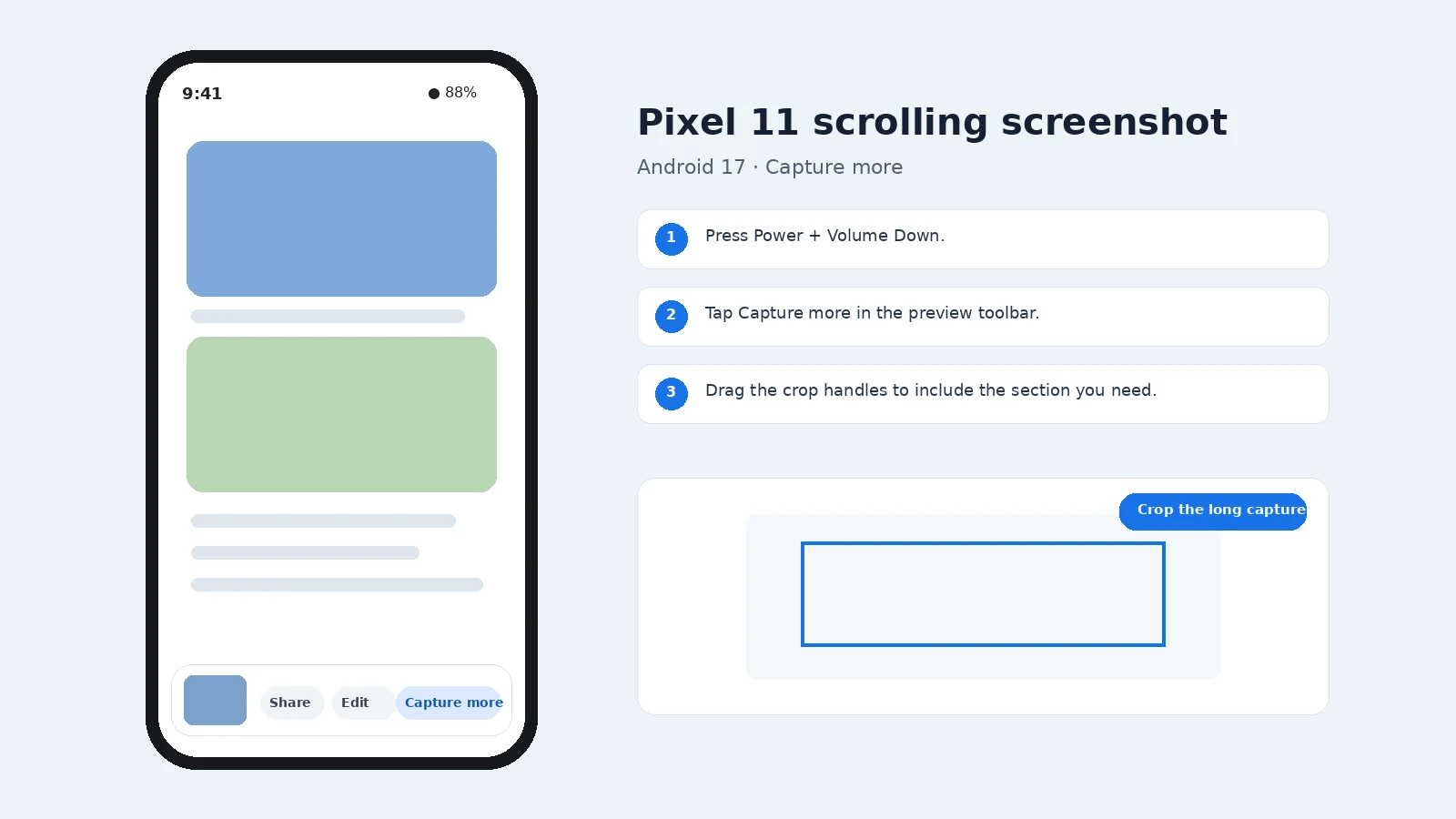
Take a normal screenshot. On Android 12 and later, when the current app supports scrolling capture, tap Capture more. Adjust the crop handles to choose how much of the page or conversation you want, then save the result. The button will not appear on screens that do not support the feature.
Where are Pixel screenshots saved?
Pixel screenshots are stored as images and are available in Google Photos. Look for the Screenshots device folder/collection or search Photos for screenshots. Storage paths and Photos navigation labels can change between Android/Photos versions.
How do I edit or share a Pixel screenshot?
Use the preview shown immediately after capture to crop, mark up, share or open the image. You can also open the screenshot later in Google Photos for editing and sharing. Before sharing, check for private notifications, personal messages, account information or QR codes that should be cropped or covered.
Why is my Pixel screenshot not working?
- Power menu appears: release Power + Volume Down more quickly.
- Volume changes: press both buttons at the same time.
- Capture more is missing: the current screen may not support scrolling capture.
- Screenshot action is missing in Recents: use the physical-button method.
- Black/blocked capture: some apps intentionally prevent screenshots.