
How to Take a Screenshot on Google Pixel 11, 11 Pro and 11 Pro XL?
Google Pixel 11 screenshot guide for Android 17: buttons, Quick Tap, Recent apps, Capture more, Pixel Screenshots app, Photos storage and troubleshooting.
On Pixel 11, Pixel 11 Pro and Pixel 11 Pro XL, press Power + Volume Down together and release. Use Capture more for supported long pages.
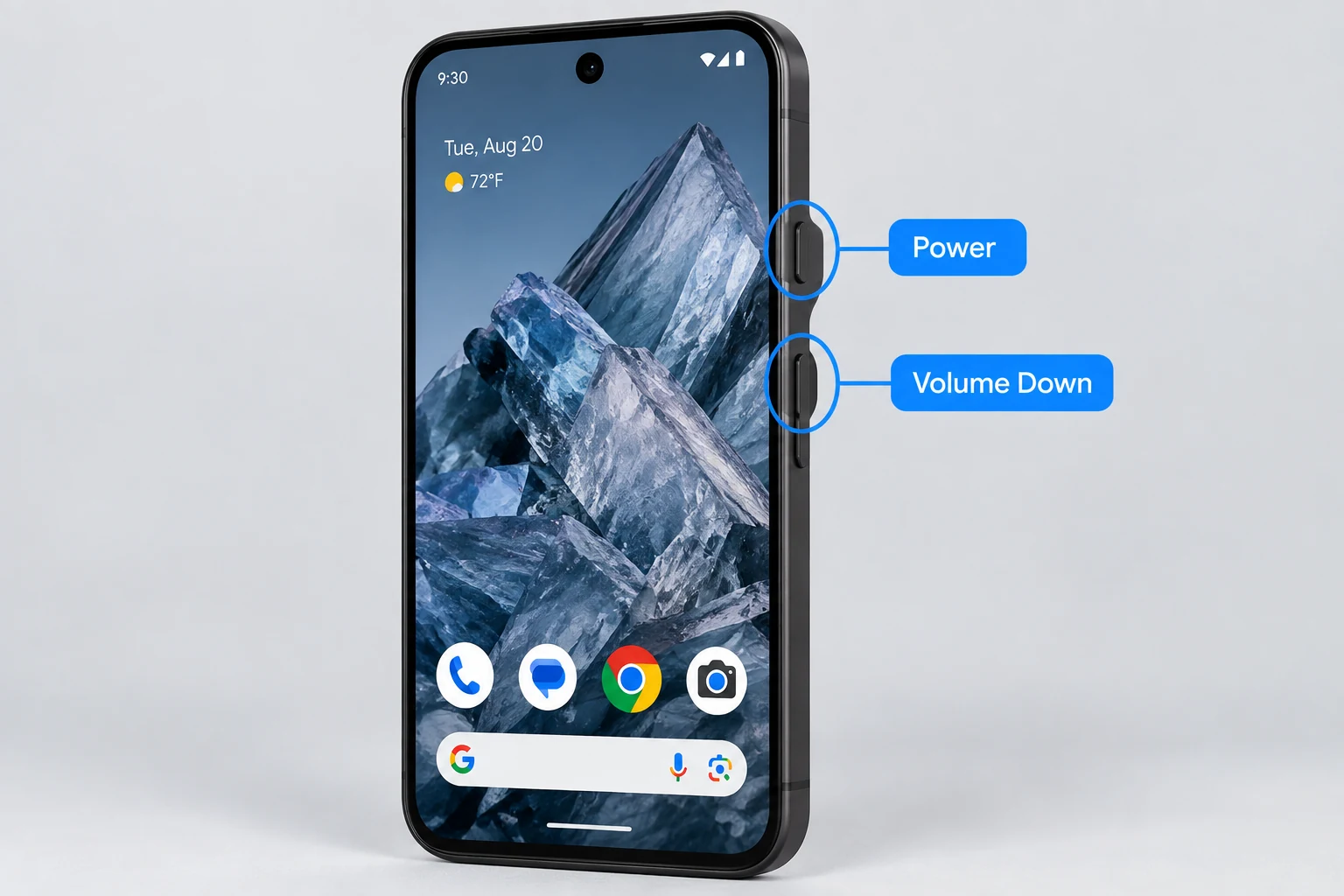
Physical-button method
The hardware method is the same across the Pixel 11 family: open the screen, press Power and Volume Down at the same time, and release. A screenshot preview appears near the bottom of the display.
Screenshot without using the buttons
With gesture navigation, swipe up from the bottom and hold to open Recent apps, choose the app, then use Screenshot when it is available. With 3-button navigation, open Overview and choose Screenshot. Pixel also supports Quick Tap on supported models, and Google documents voice capture with “Hey Google, take a screenshot.”
Scrolling screenshot
Take a normal screenshot and tap Capture more on a compatible scrollable screen. Drag the crop guides to choose the exact range. If Capture more is absent, the current app or screen probably does not expose a compatible scrolling area.
Pixel Screenshots app
Pixel 11 models support Google’s Pixel Screenshots app in supported countries and languages. The app can organize screenshots into collections, search them and offer AI-generated titles, summaries, suggested actions or reminders when eligible features are enabled. This is separate from the basic screenshot file itself.
Where Pixel screenshots are saved
For normal storage, Google points to Photos > Collections > On this device > Screenshots. Deleting a screenshot from the file system/photo folders also removes it from Pixel Screenshots because the app references those saved files.
How many screenshots can Pixel 11 store?
There is no normal screenshot-count limit. Storage capacity is the practical constraint. The Pixel Screenshots app can make a large library easier to find, but it does not replace good privacy habits or backups.
Edit and share
Tap the preview after capture for editing or sharing. You can also open the image later in Google Photos. For support screenshots, crop to the smallest useful area and remove notifications, passwords, codes and personal conversations.
Common problems
If the power menu appears, release the buttons more quickly. If volume changes, press both buttons at the same time. If a screenshot is black, the app may intentionally block capture. If Pixel Screenshots AI search is missing, feature eligibility, language, region, account state or app/model updates can be the reason.
Video guide
Sources and verification
Key technical details in this guide were checked against the following current documentation where applicable.