
How to Take a Screenshot on Ubuntu 26.04 LTS?
Ubuntu 26.04 LTS screenshot guide for GNOME 50: Print key overlay, region/window/full-screen capture, save folders, clipboard, screencast and keyboard shortcuts.
On Ubuntu 26.04, press Print to open the screenshot overlay. Use Alt + Print for the active window or Shift + Print for the entire screen.
Ubuntu 26.04 context
Ubuntu 26.04 LTS, Resolute Raccoon, was released in April 2026 and ships a modern GNOME 50 desktop on Wayland. Screenshot instructions should therefore follow the GNOME capture overlay rather than old tutorials that assume a separate GNOME Screenshot window.
Open the screenshot overlay
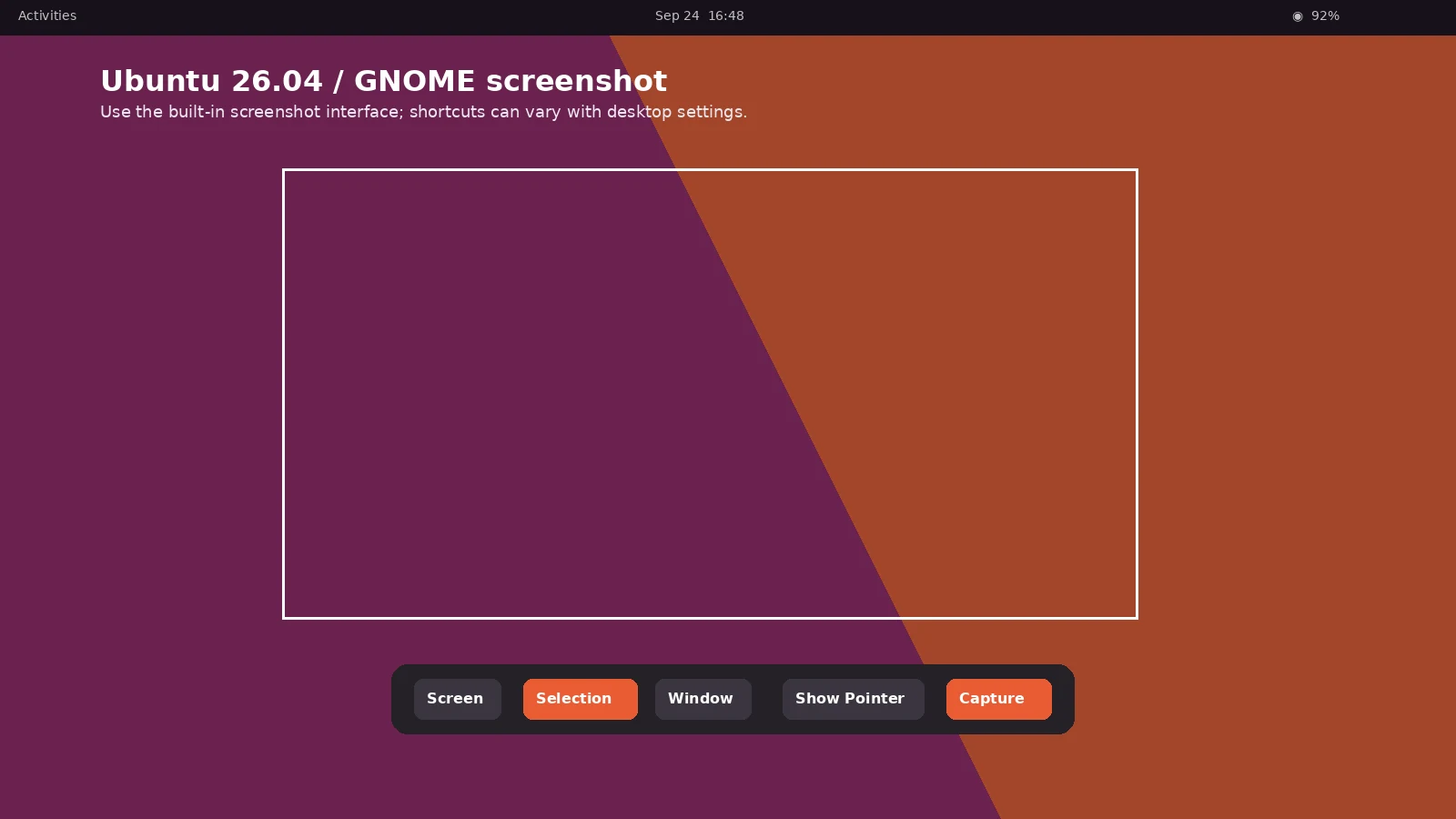
Press Print or use the screenshot control in the system menu. Choose Selection, Screen or Window. For Selection, drag the handles/crosshair around the exact area and capture. You can also choose whether the pointer should be included.
Keyboard shortcuts
Ubuntu documents Alt + Print for the focused window and Shift + Print for the entire screen. Inside the screenshot interface, S selects an area, C selects the screen, W selects a window, P toggles the pointer, V switches between screenshot and screencast, and Enter/Space/Ctrl+C can activate capture.
Where screenshots are saved
Ubuntu automatically saves screenshot images to Pictures/Screenshots under your home folder. It also puts the image on the clipboard so you can paste it directly into an editor or message. This is more accurate than saying all Linux systems save captures to the Desktop.
Screen recording
The same capture interface can switch to screencast mode. Ubuntu saves screencasts under Videos/Screencasts. Shift + Ctrl + Alt + R is documented as a shortcut to start or stop a short screencast.
Wayland and third-party tools
Ubuntu 26.04 uses Wayland by default. Native screenshot tools and desktop portals are generally more reliable under Wayland than old X11-only capture commands. If you install Flameshot or another utility, use your trusted Ubuntu repositories and check current Wayland support.
Scrolling screenshots
GNOME’s standard screenshot overlay captures a visible region, screen or window; it is not a universal scrolling screenshot tool. For a long webpage, use the browser’s full-page capture/export feature. For long documents, PDF is often cleaner.
KDE and other Linux desktops
Kubuntu and KDE Plasma use Spectacle instead, and other distributions can ship different tools. Identify the desktop environment before following a Linux shortcut page; “Linux” alone is not specific enough for every save path or key combination.
Video guide
Sources and verification
Key technical details in this guide were checked against the following current documentation where applicable.