
How to Take and Manage Screenshots in iOS 27?
iOS 27 screenshot guide covering full-screen previews, thumbnail mode, Full Page capture, SDR PNG versus HDR HEIF, Visual Look Up, CarPlay screenshots and save locations.
Use the normal iPhone button shortcut, then manage the result in the iOS 27 screenshot preview. Screenshot behavior can be customized under Settings › General › Screen Capture.
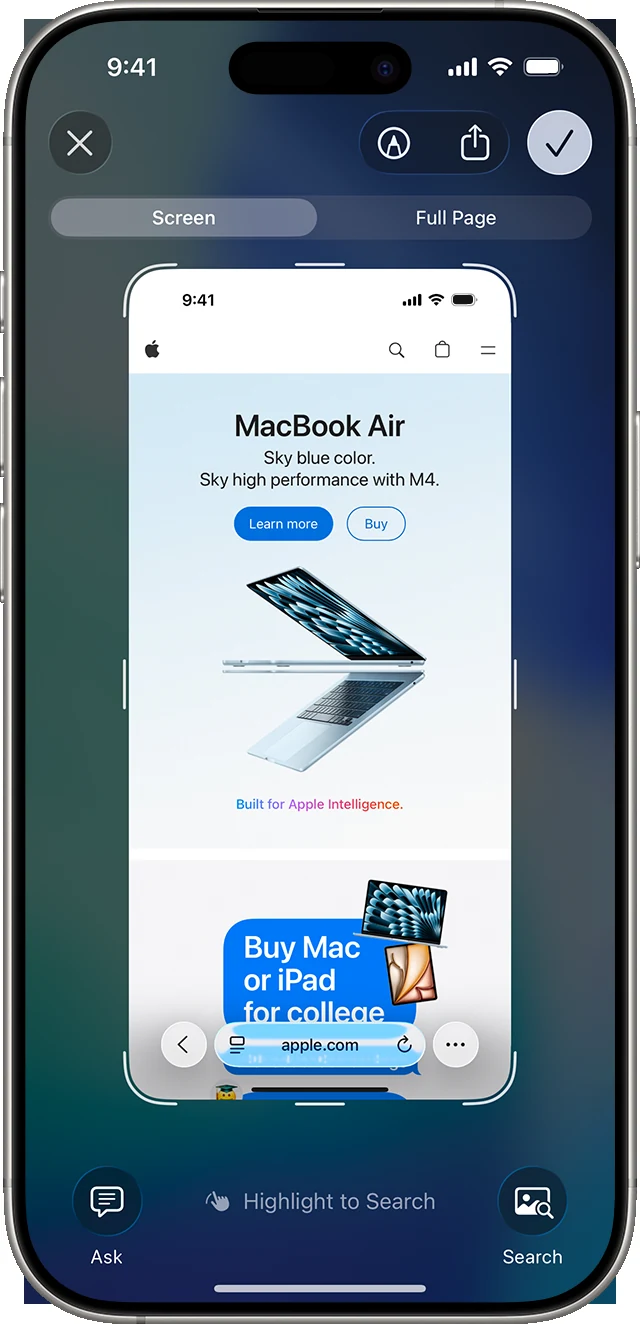
Full-screen preview is now the default
Apple’s iOS 27 documentation says a screenshot appears in full screen by default. Users who prefer a temporary lower-left thumbnail can disable Full-Screen Previews under Settings > General > Screen Capture.
Screen versus Full Page
For compatible content, open the screenshot editor and choose Full Page to include content beyond the display. Use crop handles to keep only the necessary portion. When Full Page is not offered, the current app does not expose the right kind of long content to the system capture tool.
SDR PNG and HDR HEIF
Screen Capture settings let you choose SDR or HDR. Apple documents SDR screenshots as PNG and HDR screenshots as HEIF. For web publishing, documentation and older systems, PNG is generally the more interoperable option.
Visual Look Up in screenshots
On supported models and languages, iOS 27 can use Automatic Visual Look Up in screenshots. This can identify objects or places and expose search/action tools in the screenshot experience. Availability is tied to device, language and region support.
CarPlay screenshots
The Screen Capture settings also include a CarPlay Screenshots option. This is useful when documenting CarPlay behavior, but it should be enabled only when needed because a screenshot can contain navigation, message or contact information.
Edit, annotate, search or delete
The screenshot preview can crop, use Markup, search visual content and expose contextual actions. If a screenshot is accidental, delete it from the preview rather than letting unnecessary private information remain in Photos.
Where screenshots live
Saved screenshots are available in Photos under Collections > Media Types > Screenshots. Full-page captures can offer additional save/share choices depending on the app and current iOS behavior.
Compatibility note
The physical screenshot combination is determined by the iPhone hardware: Face ID models use Side + Volume Up; Home-button models use the side/top button plus Home. The iOS 27 editor/settings changes sit on top of those hardware methods.
Video guide
Sources and verification
Key technical details in this guide were checked against the following current documentation where applicable.