
How to Take a Full-page Screenshot on iPhone or iPad?
Capture content beyond the visible screen using Full Page, crop the result, save to Photos or PDF/Files, and understand why the option sometimes does not appear.
Take a normal screenshot, tap the thumbnail, then choose Full Page when the current app/content supports it.
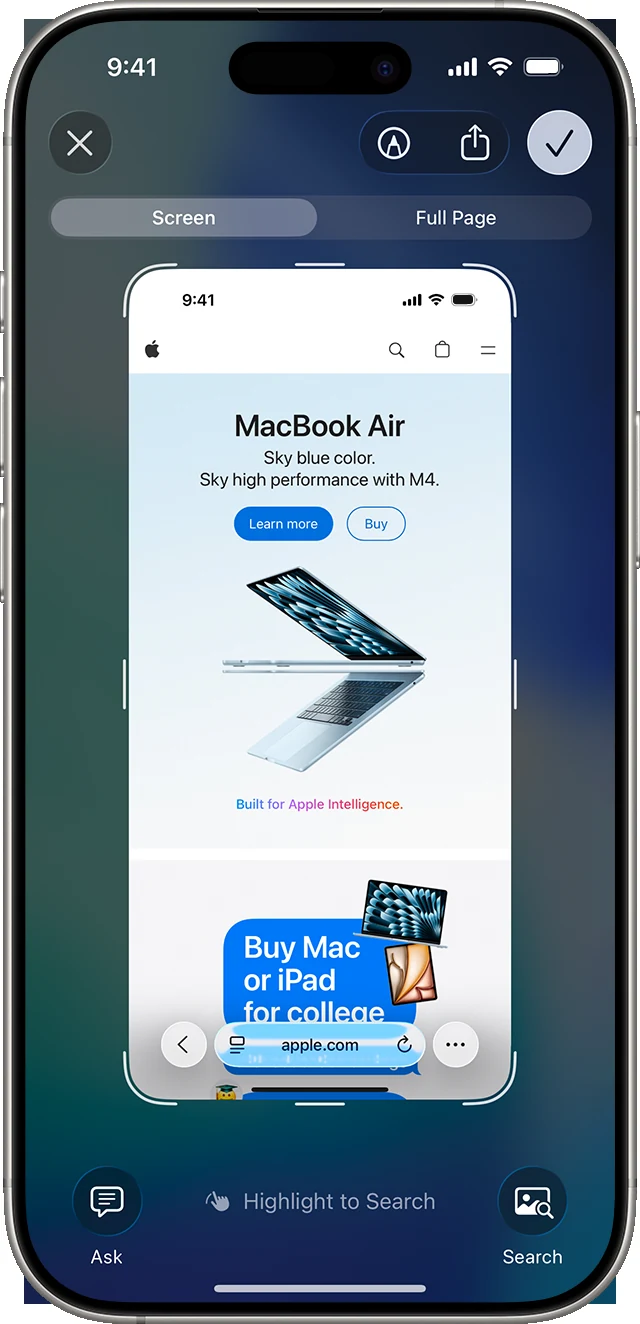
What Full Page Captures?
Full Page can include content beyond the visible screen, such as a webpage or document. It is not the same as recording the screen.
Saving as Image or PDF
Current Apple guidance allows supported full-page screenshots to be saved to Photos as an image or as a PDF in Files, depending on the workflow and OS version.
Crop Before Saving
Use the preview rail and crop handles to keep only the relevant portion. This can make a very long page easier to read.
Why Full Page is Missing?
The current app or screen may not expose compatible scrollable content. Try the same method on a standard webpage to test whether the feature itself works.
Markup and Sharing
Use Markup for arrows, text and highlights. When sharing, consider whether a PDF is more useful than a tall image.
Privacy
Long captures can include much more information than is visible at first glance. Review the entire page before sharing.
Troubleshooting
- If Full Page is missing, test Safari or another supported document screen.
- If the image is too long, crop or save as PDF.
Frequently Asked Questions
Does Full Page work in every app?
No.
Can I save a full-page capture as a photo?
Current Apple workflows can save supported captures as images to Photos.
Can I save it as PDF?
Yes, using the Files workflow on supported versions.
Does it include content below the fold?
Yes, when the app supports full-page capture.
Video Guide
Sources and Verification
Key technical details in this guide were checked against the following current documentation where applicable.