
How to Take a Screenshot on iPhone 18 Pro and iPhone 18 Pro Max?
Current iPhone 18 Pro screenshot guide for iOS 27: Side + Volume Up, full-screen preview, Full Page, HDR/HEIF, Back Tap, AssistiveTouch, Siri and Photos storage.
On iPhone 18 Pro or iPhone 18 Pro Max, quickly press and release Side button + Volume Up together.
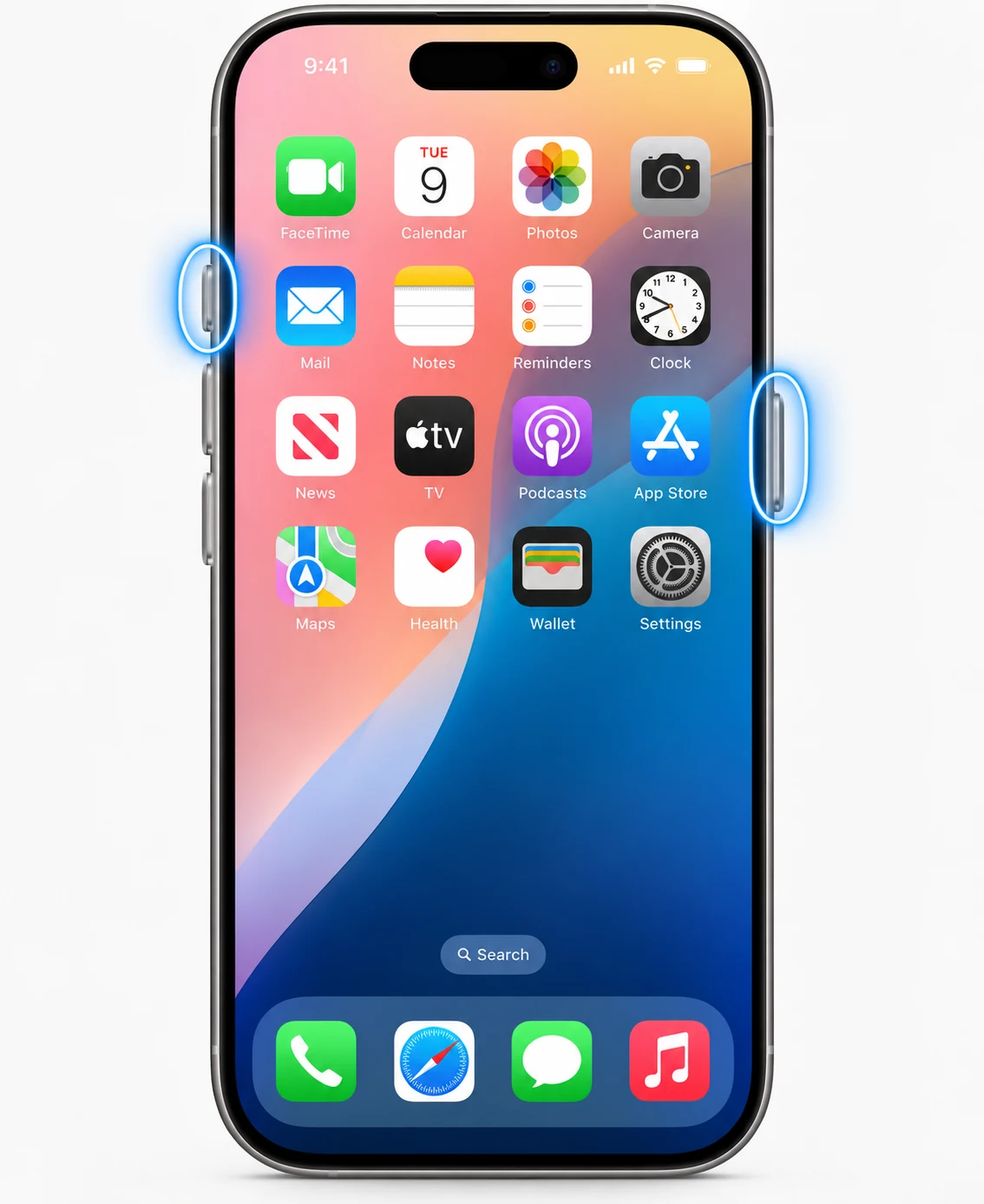
Button method
Open what you want to capture, quickly press Side and Volume Up at the same time, then release. Holding the buttons is not required and can trigger other actions. The iPhone 18 Pro generation uses the same Face ID screenshot combination as other recent iPhones.
iOS 27 preview behavior
In iOS 27, screenshots appear in a full-screen preview by default. If you prefer the older temporary thumbnail, open Settings > General > Screen Capture and turn off Full-Screen Previews. That setting explains why the interface can look different from screenshots made on older iOS versions.
Full Page capture
When the open app supports it, the screenshot editor can offer Full Page for content beyond the visible display, such as a long Safari page. Adjust the crop/selection before saving. Full Page is not a universal scroll-capture command for every app.
Screenshot formats in iOS 27
Under Settings > General > Screen Capture, Apple documents SDR screenshots as PNG and HDR screenshots as HEIF. PNG is the safest choice for support tickets and broad compatibility; HDR/HEIF can preserve a wider visual range on supported displays.
Take a screenshot without the buttons
Apple documents Siri, AssistiveTouch and Back Tap as alternative screenshot methods. These are useful for accessibility, a damaged button or one-handed workflows. Set them up only if they make capture easier; the physical button method remains the fastest default.
Where screenshots are saved
Screenshots are saved to the photo library. In current Photos, go to Collections, scroll to Media Types and choose Screenshots. The capture can also be edited or shared immediately from its preview.
How many screenshots can you take?
iPhone does not impose a normal small count limit. Each saved screenshot occupies storage. When taking many screenshots in a row, allow the capture to complete and use Photos/Screenshots to review the set afterward.
Privacy and protected content
A screenshot can include status information, notifications, names and private messages. Crop to the necessary area before sharing. Some protected media or security-sensitive apps can restrict capture.
Video guide
Sources and verification
Key technical details in this guide were checked against the following current documentation where applicable.