
How to Take a Screenshot on Windows 11 25H2?
Current Windows 11 25H2 screenshot methods: Snipping Tool, Print Screen, selected areas, active windows, save locations, recording, multi-monitor capture and troubleshooting.
On Windows 11 25H2, press Win + Shift + S for a selected area or Win + PrtScn to save the entire desktop as a PNG.
What is current on Windows 11 25H2?
Windows 11 25H2 is a current Windows 11 servicing release in 2026. Screenshot basics are unchanged, but the current Snipping Tool is more capable than older articles suggest: it supports Rectangle, Window, Full screen and Freeform image snips, plus rectangular screen recording on supported Windows 11 builds.
Capture a specific area
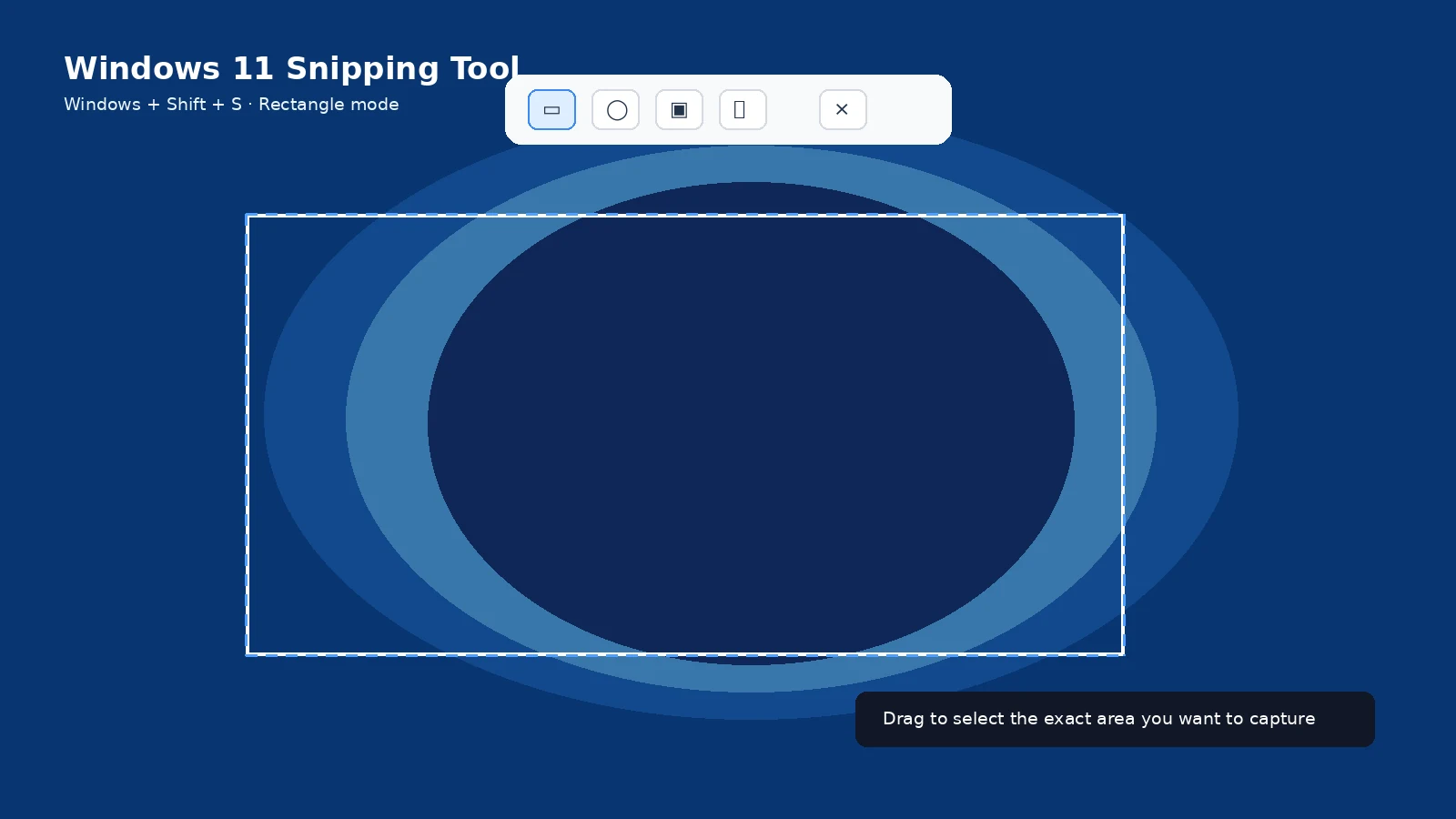
Press Windows + Shift + S. Choose Rectangle for the usual drag-to-select workflow. The screen dims, you drag around the area, and the capture enters the Snipping Tool/clipboard workflow. This is the best cross-brand shortcut because it does not depend on a laptop having a dedicated Print Screen key.
Capture the entire screen
Windows + PrtScn takes the whole desktop and normally writes a PNG to Pictures > Screenshots. Plain PrtScn normally copies the desktop to the clipboard. On multi-monitor systems, a full desktop capture can include all displays in one combined image.
Capture only the active window
Select the application window, then press Alt + PrtScn. The result goes to the clipboard. If you want a more visual workflow, use Windows + Shift + S and choose Window mode instead.
Where screenshots are saved
Check Pictures > Screenshots first. If the Pictures library is redirected or backed up by OneDrive, the folder can live inside OneDrive Pictures. Clipboard-only screenshots do not create a durable file until you paste/save them. Snipping Tool auto-save behavior depends on the current app settings.
Scrolling screenshot and long pages
Windows still does not provide one universal scrolling-screenshot command for every desktop application. Use the browser’s full-page feature for webpages, PDF export for long documents, or a trusted application-specific method. Avoid stitching dozens of captures when a cleaner export exists.
Screen recording
Current Snipping Tool can record a rectangular screen area and Microsoft documents Windows + Shift + R for the video overlay on supported Windows 11. Use still screenshots when one frame explains the problem and recording only when motion or timing matters.
Troubleshooting
If Print Screen changes brightness or another hardware function, try Fn + PrtScn or use Windows + Shift + S. If the screenshot seems missing, determine first whether the method saved a file or only copied the image. Protected video and security-sensitive apps can intentionally block capture.
Video guide
Sources and verification
Key technical details in this guide were checked against the following current documentation where applicable.