
How to Use Snipping Tool for Screenshots on Windows?
Use Snipping Tool for rectangular, window, full-screen and free-form screenshots, delayed captures, annotation, screen recording, and saving.
Press Win + Shift + S for an image snip or Win + Shift + R for a screen recording on current Windows 11 builds.
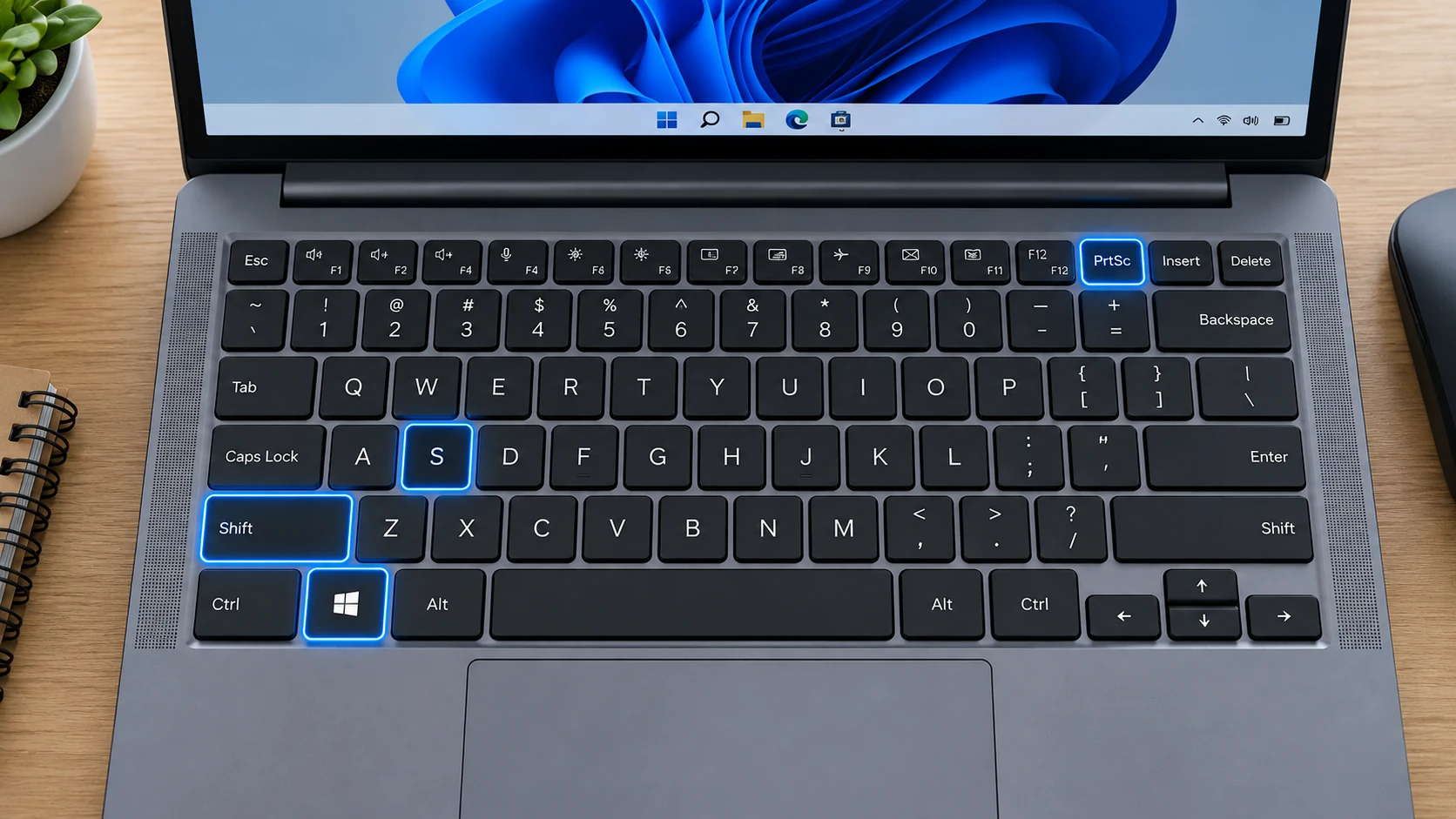
Capture modes explained
Rectangle is best for a precise area. Window captures one application. Full screen captures the desktop. Free-form lets you draw an irregular boundary. After capture, the image opens in Snipping Tool where it can be copied, saved, cropped or annotated.
Delay menus and tooltips
Use the delay option when the interface you need disappears as soon as you click elsewhere. Set a short delay, prepare the menu, then let Snipping Tool enter capture mode.
Save versus clipboard
A snip is copied into the Snipping Tool workflow and the clipboard. Save it explicitly when you need a durable file, and check Snipping Tool settings if you want automatic saving.
Edit with Paint
For more detailed editing, use Edit with Paint. That is useful for adding text, resizing, redacting with solid shapes or combining multiple captures.
Screen recording
On Windows 11, Snipping Tool can record a rectangular part of the screen. This is different from a screenshot and creates a video file, so use it only when motion or a sequence matters.
Copilot+ features
On supported Copilot+ PCs, Microsoft documents additional features such as Perfect screenshot and Color picker. Do not assume these options exist on every Windows PC.
Troubleshooting
- If Windows + Shift + S does nothing, launch Snipping Tool from Start and check keyboard shortcuts.
- If a snip vanishes, save it before closing or check autosave settings.
- If the wrong area is captured, switch capture mode before dragging.
Frequently asked questions
Does Snipping Tool automatically save?
That depends on the version and settings. Always verify the destination if the file matters.
Can Snipping Tool capture a scrolling page?
Not as a universal long-page capture across every app. Use browser or document-specific full-page tools when possible.
Can it record video?
Yes on current Windows 11 versions.
Can I capture a menu?
Yes. Use Delay, then open the menu before the timer expires.
Video guide
Sources and verification
Key technical details in this guide were checked against the following current documentation where applicable.