
How to Screenshot Only the Active Window on Windows?
Capture one app window without the rest of the desktop using Alt + PrtScn or Snipping Tool Window mode.
Click the window you want, then press Alt + PrtScn. The active window is copied to the clipboard. Use Snipping Tool Window mode if you want a more visual selection workflow.
Alt + PrtScn
Make the target window active first. Press Alt + PrtScn, then paste with Ctrl + V into Paint, Word, an email or another app.
Window mode in Snipping Tool
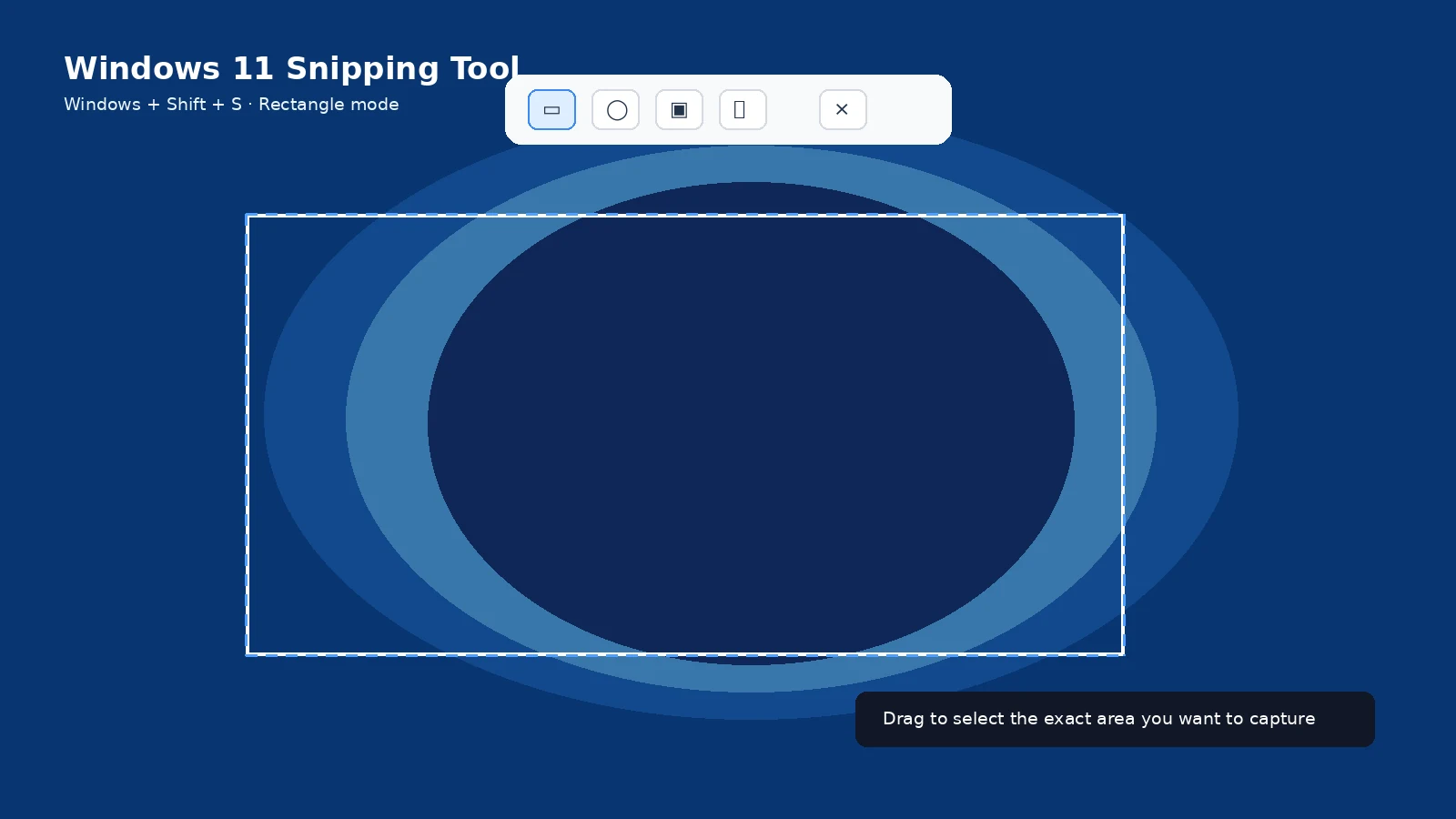
Press Windows + Shift + S, select Window mode, then click the window. This is useful when you are unsure which window currently has focus.
Borders and shadows
The exact border/shadow treatment depends on the application and Windows version. Crop in Snipping Tool or Paint if you need a tighter result.
Multiple monitors
Active-window capture works even when the window is on a secondary monitor. It avoids capturing the rest of the combined desktop.
Where it is saved
Alt + PrtScn is normally clipboard-first. Save it manually after pasting or use Snipping Tool if you prefer an explicit save workflow.
Sensitive information
Check title bars, account names, browser tabs and notifications before sharing a window screenshot.
Troubleshooting
- If the wrong window is captured, click the intended window immediately before the shortcut.
- If nothing is saved, remember Alt + PrtScn normally uses the clipboard.
Frequently asked questions
Does Alt + PrtScn save automatically?
Normally no; paste and save it.
Can I capture a minimized window?
No. Restore the window so Windows can capture it.
Can Snipping Tool capture one window?
Yes. Choose Window mode.
Does it work on a second monitor?
Yes.
Video guide
Sources and verification
Key technical details in this guide were checked against the following current documentation where applicable.