
How to Use Windows + Shift + S for a Screenshot?
Open the Windows Snipping Tool overlay, choose a capture mode, select an area, then save, copy, edit or share the screenshot.
Press Win + Shift + S. The screen dims, the capture toolbar appears, and you can choose Rectangle, Window, Full screen or Free-form.
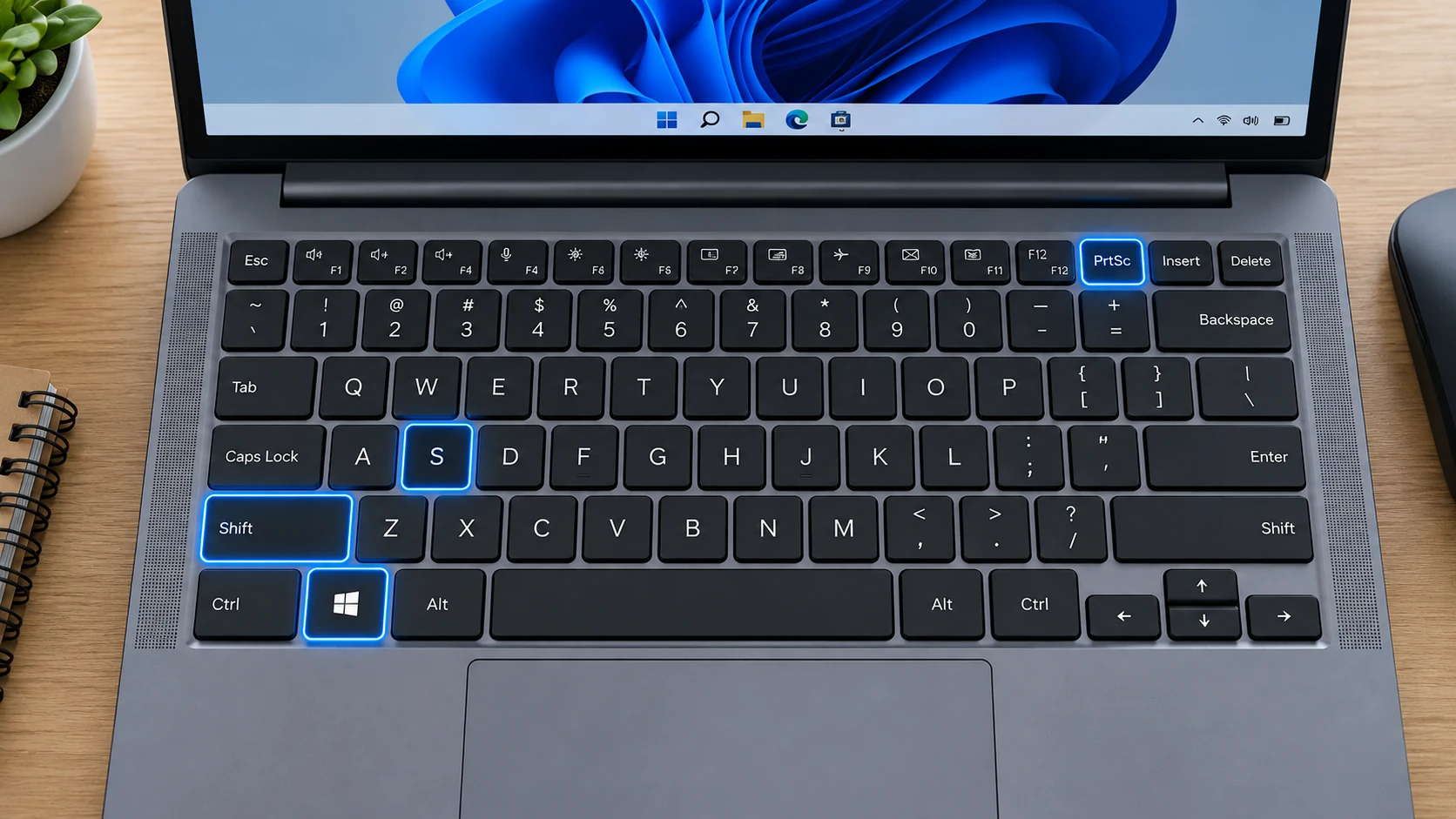
Step-by-step
Arrange the screen first, press Windows + Shift + S, choose a mode, select the content, then open the notification or Snipping Tool to edit and save. Rectangle mode is the most useful for capturing a specific area.
Where the snip goes
The capture is placed on the clipboard and handed to Snipping Tool. On current Windows 11 builds, Microsoft documents automatic saving to the Screenshots folder by default; the setting and default folder can be changed. Older Windows/Snipping Tool versions can behave differently.
Window mode
Window mode is cleaner than manually dragging around an app because it captures the selected window boundary directly.
Full-screen mode
Full-screen mode captures the desktop immediately. If you need automatic saving with one shortcut, Windows + PrtScn is often simpler.
Free-form mode
Free-form is useful when a rectangular crop includes too much surrounding information. Draw carefully around the area you need.
Accessibility and keyboard-only use
If dragging is difficult, use Window or Full-screen modes, or launch Snipping Tool directly and navigate its controls with the keyboard.
Troubleshooting
- If nothing happens, launch Snipping Tool manually and install Windows updates.
- If the screenshot is not a file, paste it into an app or save from Snipping Tool.
- If Print Screen opens the same overlay, that is a configurable Windows behavior.
Frequently asked questions
Is Windows + Shift + S better than PrtScn?
It is better for precise areas; Windows + PrtScn is faster for a full-screen saved file.
Does it capture multiple monitors?
You can select across monitors, but for one monitor drag only around that display.
Can it capture a menu?
Use Snipping Tool Delay when the menu would disappear.
Can it take scrolling screenshots?
Not universally across desktop apps.
Video guide
Sources and verification
Key technical details in this guide were checked against the following current documentation where applicable.