
How to Take a Partial Screenshot on Windows?
Capture only part of your Windows screen with Windows + Shift + S, Snipping Tool Rectangle mode, free-form capture, or precise cropping.
Press Win + Shift + S, keep Rectangle mode selected, and drag around the exact area you need.
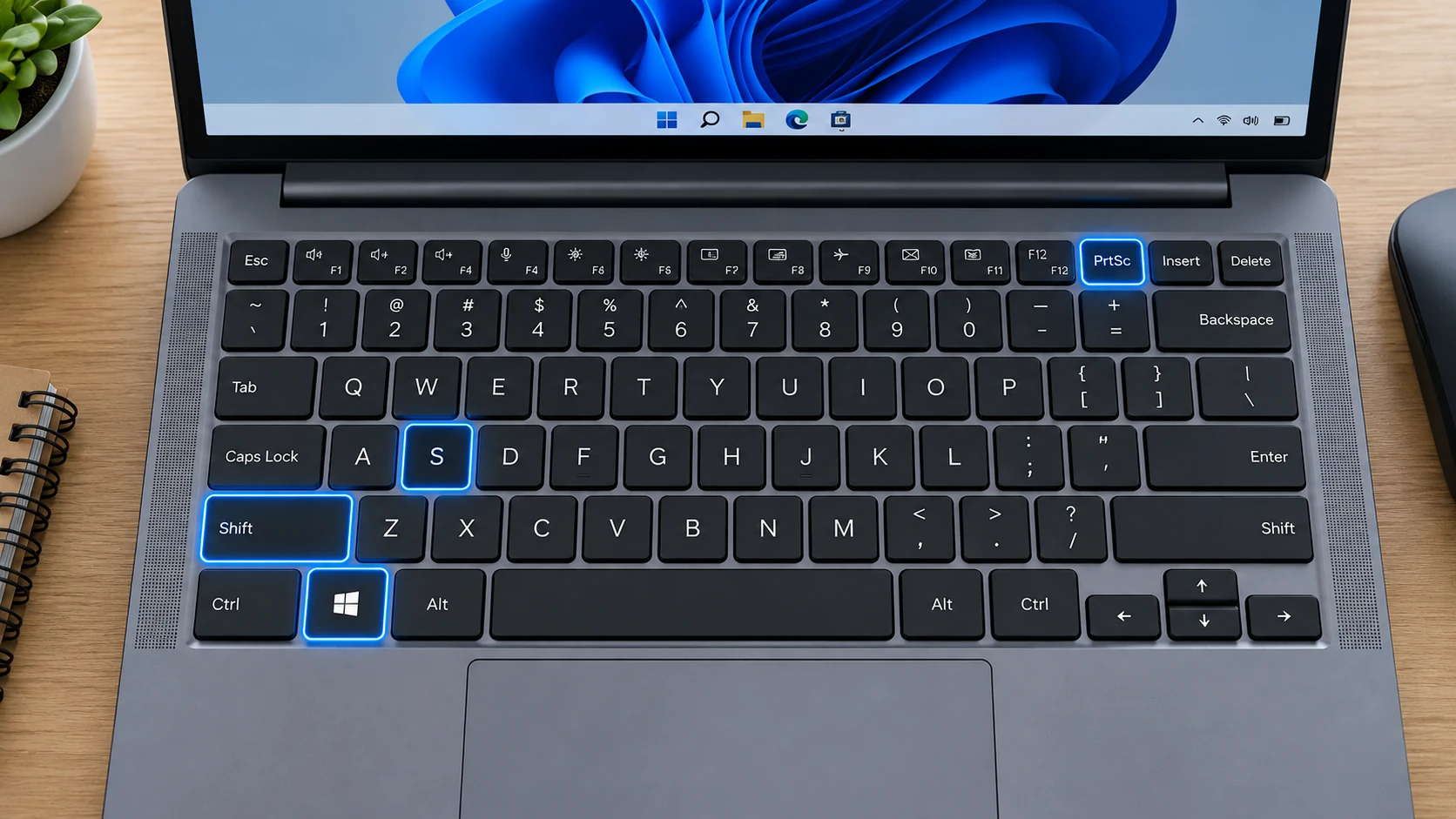
Rectangle capture
This is the best default for text, receipts, error messages and part of a webpage. Start slightly outside the content so you do not clip letters or borders.
Free-form capture
Choose Free-form only when a rectangular area includes distracting material. Free-form screenshots are harder to align and may be less useful for documentation.
After capture
Open the notification to crop, annotate, copy or save. If you only need to paste the result into chat or a document, the clipboard copy may be enough.
Precision tips
Zoom the source content before capturing rather than enlarging a tiny screenshot later. A larger source view usually produces clearer text.
Partial screenshots on multiple monitors
Drag only across the monitor or section you need. This is the most reliable built-in way to capture exactly one display.
Privacy
A partial capture is also a privacy tool: crop out browser tabs, account names, addresses and notifications that are unrelated to the task.
Troubleshooting
- If the overlay closes, reopen it and avoid pressing Esc.
- If your screenshot is blurry, increase the source zoom before capturing.
Frequently asked questions
Where does a partial screenshot go?
It is copied to the clipboard and opens in the Snipping Tool workflow; saving behavior depends on settings.
Can I choose a non-rectangular shape?
Yes. Use Free-form mode.
Can I capture a dropdown menu?
Use Snipping Tool Delay.
Can I capture only one monitor?
Yes, select that monitor area with Rectangle mode.
Video guide
Sources and verification
Key technical details in this guide were checked against the following current documentation where applicable.