
How to Take a Screenshot on Samsung Galaxy S26, S26+ and S26 Ultra?
Samsung Galaxy S26 screenshot methods including Side + Volume Down, palm swipe, scroll capture, S Pen/Screen write, AI Select and save locations.
Quickly press the Side button + Volume Down together. Use the screenshot toolbar for Scroll capture when the page continues below the screen.
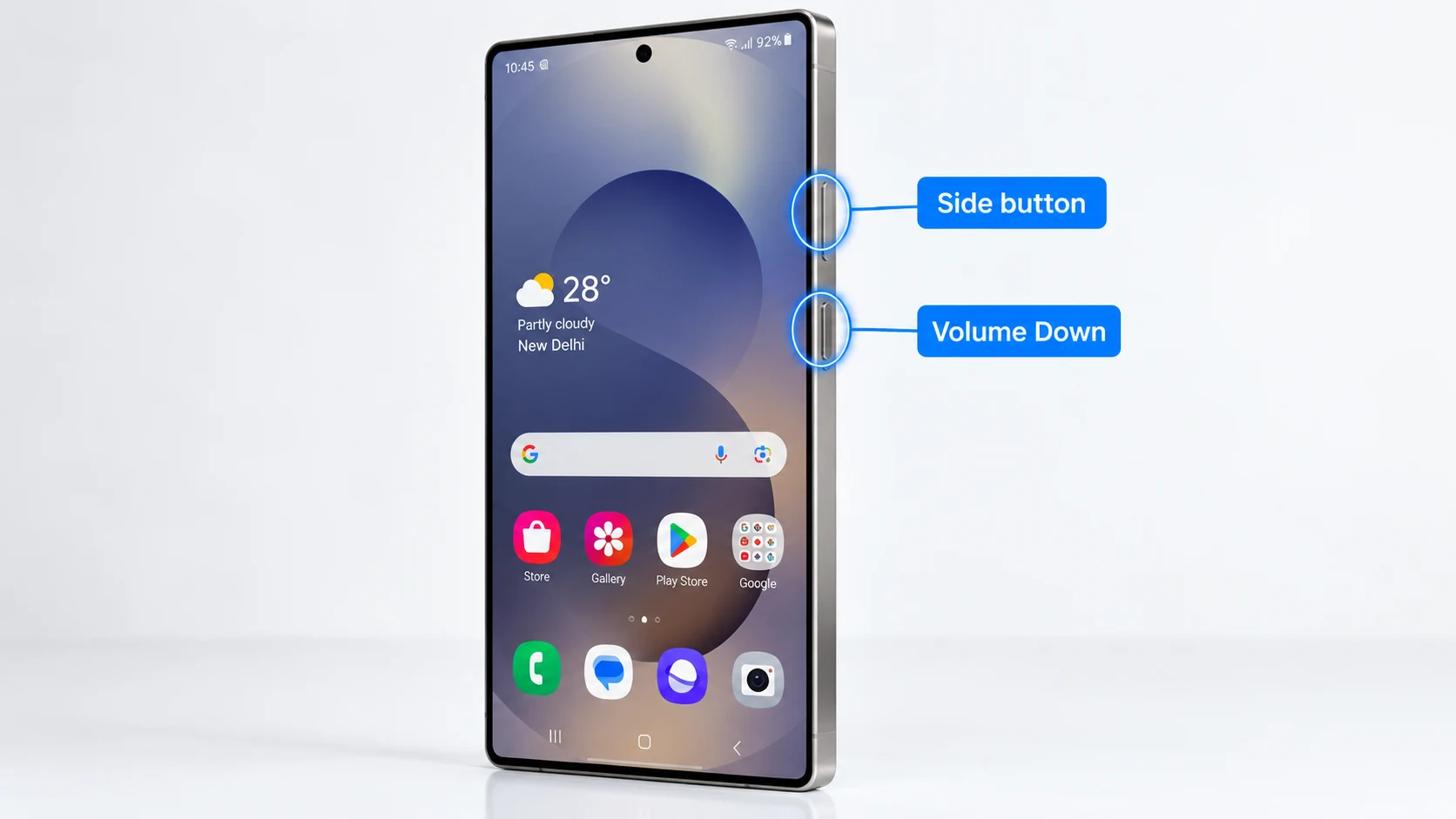
Galaxy S26 button method
The Galaxy S26, S26+ and S26 Ultra use the usual Samsung Galaxy button method: quickly press the Side button and Volume Down together. Do not hold the Side button for too long or you can trigger a power/assistant action instead of the screenshot.
Palm swipe to capture
On supported Galaxy devices, search Settings for Palm swipe to capture and enable it. Sweep the edge of your hand across the screen. This option is convenient when you do not want to press the hardware buttons, but Samsung notes that feature availability can vary by model and software.
Scroll capture
After a normal screenshot, tap Scroll capture when it appears in the screenshot toolbar. Continue using the control until the long page contains the section you need. The toolbar will not offer scrolling capture on every app or screen.
Galaxy S26 Ultra and S Pen workflows
On S Pen-capable Galaxy devices, Air Command tools such as Screen write can capture and annotate content. This is especially useful when the purpose of the screenshot is to mark a region, add a note or highlight text before sharing.
AI Select on the Galaxy S26 series
Samsung documents AI Select on the S26 series and allows it to be opened from the Edge panel or from the screenshot toolbar. It can select an object or area and offer actions such as text extraction or other context-sensitive tools. Treat it as a post-capture selection feature, not a replacement for the normal screenshot shortcut.
Where Samsung screenshots are saved
Open Gallery and look for the Screenshots album. Samsung may also expose the file under internal storage in a Pictures/Screenshots-style folder. The Gallery route is easier for most users and is less sensitive to storage-layout changes.
Editing and sharing
The screenshot toolbar can provide crop, annotation, share and other actions. Before sharing screenshots from messages, banking apps, order pages or settings, remove unrelated personal information and notification previews.
Troubleshooting
If the toolbar disappears too quickly, open the saved image from Gallery. If Palm swipe fails, confirm it is enabled and use the button method. Some secure apps intentionally block screenshots, and the exact available tools can vary by carrier, region and One UI version.
Video guide
Sources and verification
Key technical details in this guide were checked against the following current documentation where applicable.