
How to Take a Screenshot on Android 17?
Take screenshots on Android 17 with buttons, scrolling Capture more, manufacturer shortcuts, save locations, editing, sharing and troubleshooting.
Press Power + Volume Down together. On supported scrollable screens, tap Capture more after the screenshot.
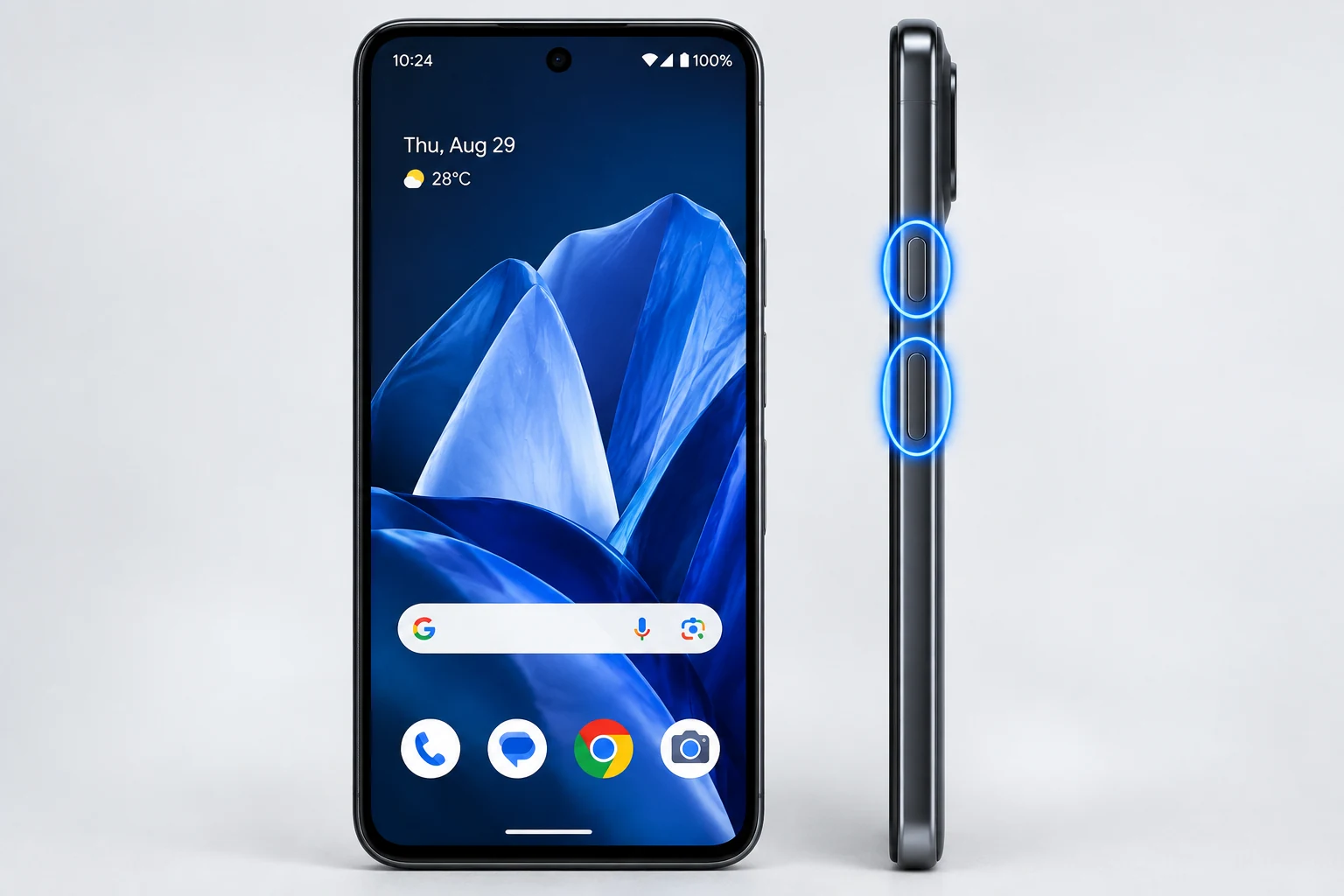
Standard Android 17 screenshot method
Open the content you need and press Power + Volume Down together, then release. A preview normally appears so you can edit, share or continue into a scrolling capture. Android 17 keeps this familiar system-level method.
Capture more for a long page
On most screens that support scrolling capture, take the normal screenshot and tap Capture more. Drag the crop guides until the image includes the part of the article, conversation or settings page you want. Apps can disable or fail to expose scrolling content, so the button is not guaranteed everywhere.
Button-free and manufacturer methods
Some Android phones expose Screenshot in the power menu, Quick Settings or Recent apps. Samsung, Xiaomi, Motorola, OnePlus, OPPO, vivo and Huawei also add brand-specific gestures or toolbars. Do not assume one three-finger gesture applies to every Android phone.
Where Android 17 screenshots are saved
Google’s current instructions use Photos > Collections > On this device > Screenshots. On phones that use a manufacturer Gallery, open its Screenshots album. A Pictures/Screenshots-style device folder is common, but the gallery path is easier for most users and survives storage-layout differences.
How many screenshots can you take?
You can keep taking screenshots as separate files until storage or a device-management policy becomes the constraint. A large burst does not have a normal fixed count limit. If you are preserving evidence or technical steps, organize or rename important captures before they become difficult to identify.
Edit, share and privacy
Use the preview to crop, mark up or share. Before sending a screenshot, inspect notifications, contact names, QR codes, account identifiers and location details. Cropping away private information is safer than relying on a translucent blur.
Why a screenshot can be blocked
Banking, medical, streaming and other sensitive apps can mark a screen as non-capturable. A black or blocked capture can therefore be intentional security behavior rather than a phone fault.
Screen recording is separate
Android also includes screen recording on many devices. Use it for movement or a sequence. A screenshot remains smaller, easier to inspect and usually better for a single error message or receipt.
Video guide
Sources and verification
Key technical details in this guide were checked against the following current documentation where applicable.