
How to Take a Screenshot on a Samsung Galaxy Phone or Tablet?
Samsung Galaxy screenshot methods: Side/Power + Volume Down, palm swipe, Scroll capture, S Pen options, Gallery location, editing and sharing.
Press Side/Power + Volume Down together and release after a brief moment. On supported Galaxy devices you can also use Palm swipe, Scroll capture, voice commands, Edge panel shortcuts or S Pen features.
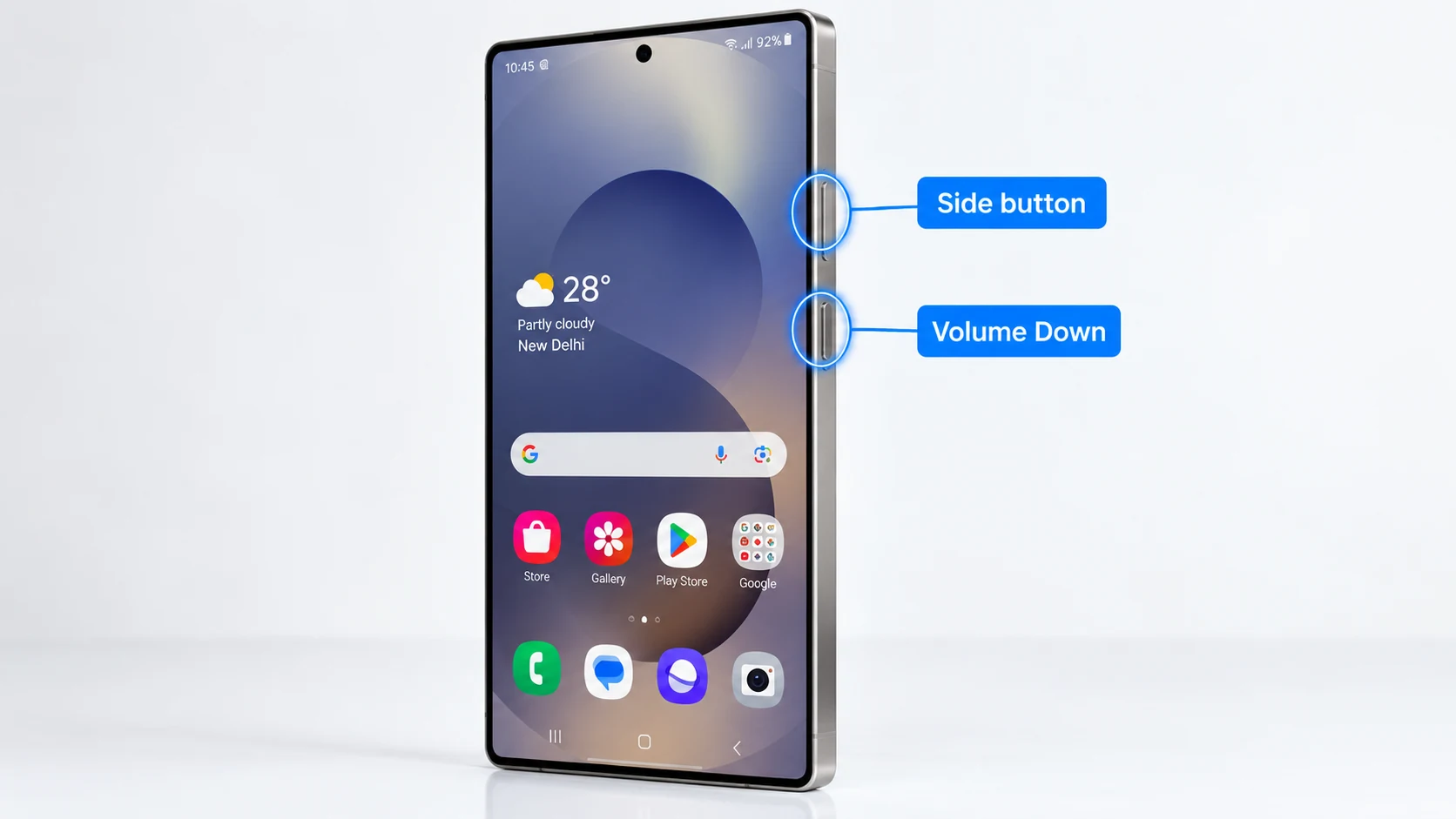
Button Method
Samsung’s current support guidance uses the Side/Power button with Volume Down. Button placement varies by model, especially across Galaxy S, A, Z Fold, Z Flip and tablets.
Palm Swipe
If supported, enable Palm swipe to capture in Settings > Advanced features. Swipe the edge of your hand across the display. Samsung notes this gesture is not available in every context or on every model.
Scrolling Screenshot
After a normal capture, tap Scroll capture when the page can scroll. Continue until you have the content you need. The button appears only when scrolling is possible.
S Pen and Smart Select
Supported S Pen devices can use Screen Write or selection tools. Availability depends on the Galaxy model and software version.
Where Samsung Screenshots are Saved?
Open Gallery > Albums > Screenshots. You can edit, tag and share directly from the screenshot toolbar or Gallery.
How Many Screenshots Can You Take?
There is no one-shot limit. Each saved capture becomes an image, subject mainly to available storage and any app-level screenshot restrictions.
Troubleshooting
- If the power menu opens, release the buttons more quickly.
- If Palm swipe fails, confirm it is enabled and that the keyboard is not covering the screen.
- If Scroll capture is missing, the current screen may not support scrolling capture.
Frequently Asked Questions
Does every Samsung phone support Palm swipe?
No. Availability varies by device and software version.
Where do Galaxy screenshots go?
Gallery > Albums > Screenshots.
Can I take a long screenshot?
Yes on supported scrollable screens using Scroll capture.
Can apps block screenshots?
Yes. Secure or protected apps can restrict capture.
Video Guide
Sources and Verification
Key technical details in this guide were checked against the following current documentation where applicable.