
What Does the Print Screen Key Do on Windows?
Understand PrtScn, Windows + PrtScn, Alt + PrtScn, Fn combinations, clipboard behavior, and where saved screenshots go.
PrtScn is the traditional Windows screenshot key. Alone it usually copies the screen to the clipboard; with Windows it saves a file; with Alt it captures the active window.
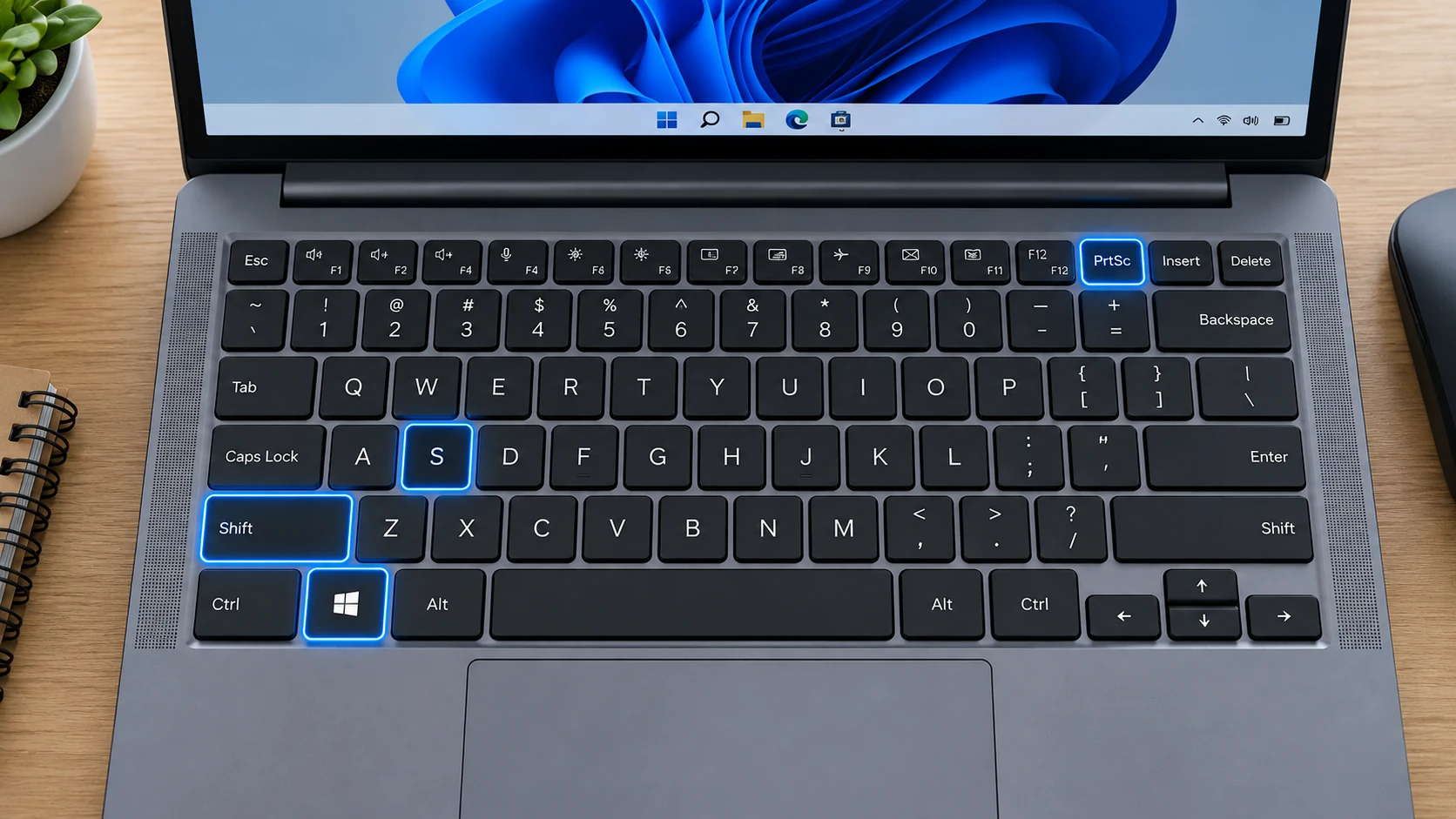
Where to find PrtScn
The key is usually near the upper-right of a desktop keyboard or in the function row of a laptop. Labels include PrtSc, PrtScn, Print Scr, PrntScrn and similar abbreviations.
Why Fn may be required
Compact laptop keyboards often give one physical key two jobs. In that case, hold Fn while pressing the key carrying the Print Screen legend. Exact combinations vary by manufacturer and model.
Clipboard versus saved file
PrtScn and Alt + PrtScn are commonly clipboard actions. Windows + PrtScn is the easiest built-in method when you want a file created automatically.
Print Screen can open Snipping Tool
Windows can be configured so the Print Screen key opens screen snipping rather than acting only as a traditional clipboard key. If behavior surprises you, check Accessibility or keyboard settings.
Multiple monitors
A full Print Screen capture can include the combined desktop across monitors. For one display only, use Rectangle capture around that monitor.
No Print Screen key
Use Windows + Shift + S. It works on modern Windows without needing a dedicated PrtScn key.
Troubleshooting
- Check Fn Lock if PrtScn shares a function-row key.
- Paste with Ctrl + V if you used a clipboard-only method.
- Use Windows + Shift + S if the keyboard legend is unclear.
Frequently asked questions
Why does PrtScn open Snipping Tool?
Windows can map Print Screen to screen snipping.
Where does Windows + PrtScn save?
Usually Pictures > Screenshots, or the corresponding backed-up Pictures folder.
What does Alt + PrtScn capture?
Only the currently active window.
What if my keyboard has no PrtScn key?
Use Windows + Shift + S or open Snipping Tool from Start.
Video guide
Sources and verification
Key technical details in this guide were checked against the following current documentation where applicable.