
How to Take a Screenshot Without a Print Screen Key?
Use Windows + Shift + S, Snipping Tool, touch controls, or manufacturer-specific Fn shortcuts when your keyboard has no dedicated PrtScn key.
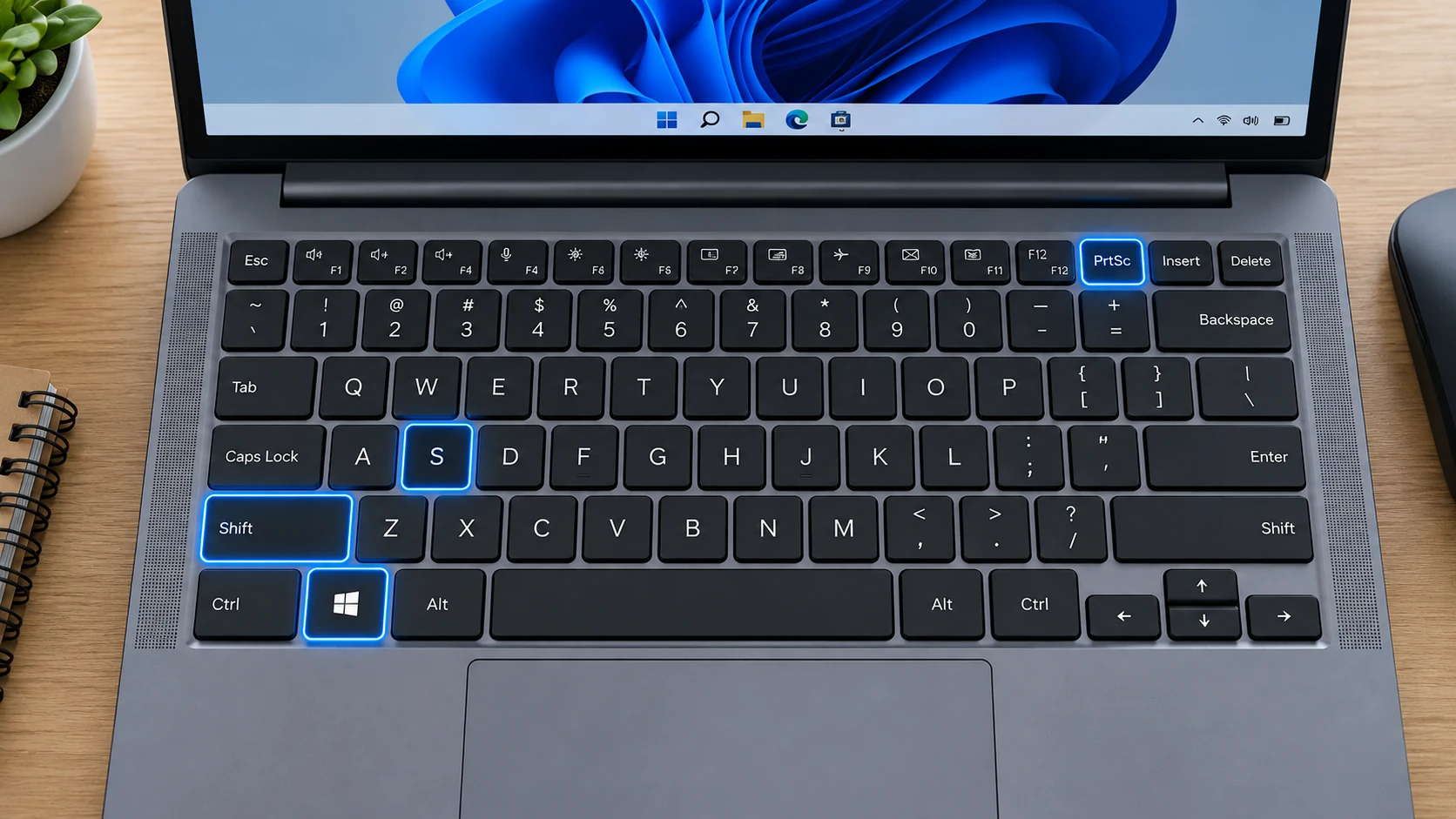
The universal modern answer is Win + Shift + S. It does not require a Print Screen key.
Use Snipping Tool
Press Windows + Shift + S or open Snipping Tool from Start. This works on laptops where Print Screen is absent, hidden behind Fn, or printed with an unfamiliar abbreviation.
Fn alternatives
Some laptop models place Print Screen on another key. Dell documents examples such as Fn + Insert and Fn + F10 on certain keyboards; Lenovo documents model-specific combinations such as Fn + T on some systems. Always check the exact keyboard legend or user guide.
Surface devices
Microsoft Surface devices can use Snipping Tool and, on some models, Power + Volume Up. Surface Laptop does not use the same physical-button combination as detachable Surface devices.
Acer laptops without PrtScn
Acer documents Windows + Shift + S as the solution on certain Aspire Lite models that do not have a dedicated Print Screen key.
Touchscreen method
On Windows tablets, hardware-button screenshot support depends on the device. When available, manufacturer documentation is more reliable than assuming every tablet uses the same combination.
External keyboard
If your compact external keyboard lacks Print Screen, Windows + Shift + S remains the simplest method.
Troubleshooting
- Do not guess an Fn combination from a different laptop model.
- If the Windows key is disabled by gaming software, launch Snipping Tool from Start.
Frequently asked questions
Can I screenshot without PrtScn?
Yes. Windows + Shift + S is the easiest built-in method.
Why do laptop shortcuts vary?
Manufacturers reuse limited keys and assign secondary functions differently.
Does an on-screen keyboard help?
It can expose Print Screen in some configurations, but Snipping Tool is usually faster.
What should I use on a Surface?
Use Snipping Tool or Microsoft’s model-specific Surface instructions.
Video guide
Sources and verification
Key technical details in this guide were checked against the following current documentation where applicable.