
How to Take a Screenshot on Microsoft Surface?
Screenshot and screen-recording methods for Surface Pro, Surface Laptop, Surface Go, Surface Book and Surface Studio.
Use Windows + Shift + S on any modern Surface with Windows. Microsoft also documents Power + Volume Up on some Surface devices, while explicitly noting that this hardware shortcut does not apply to Surface Laptop.
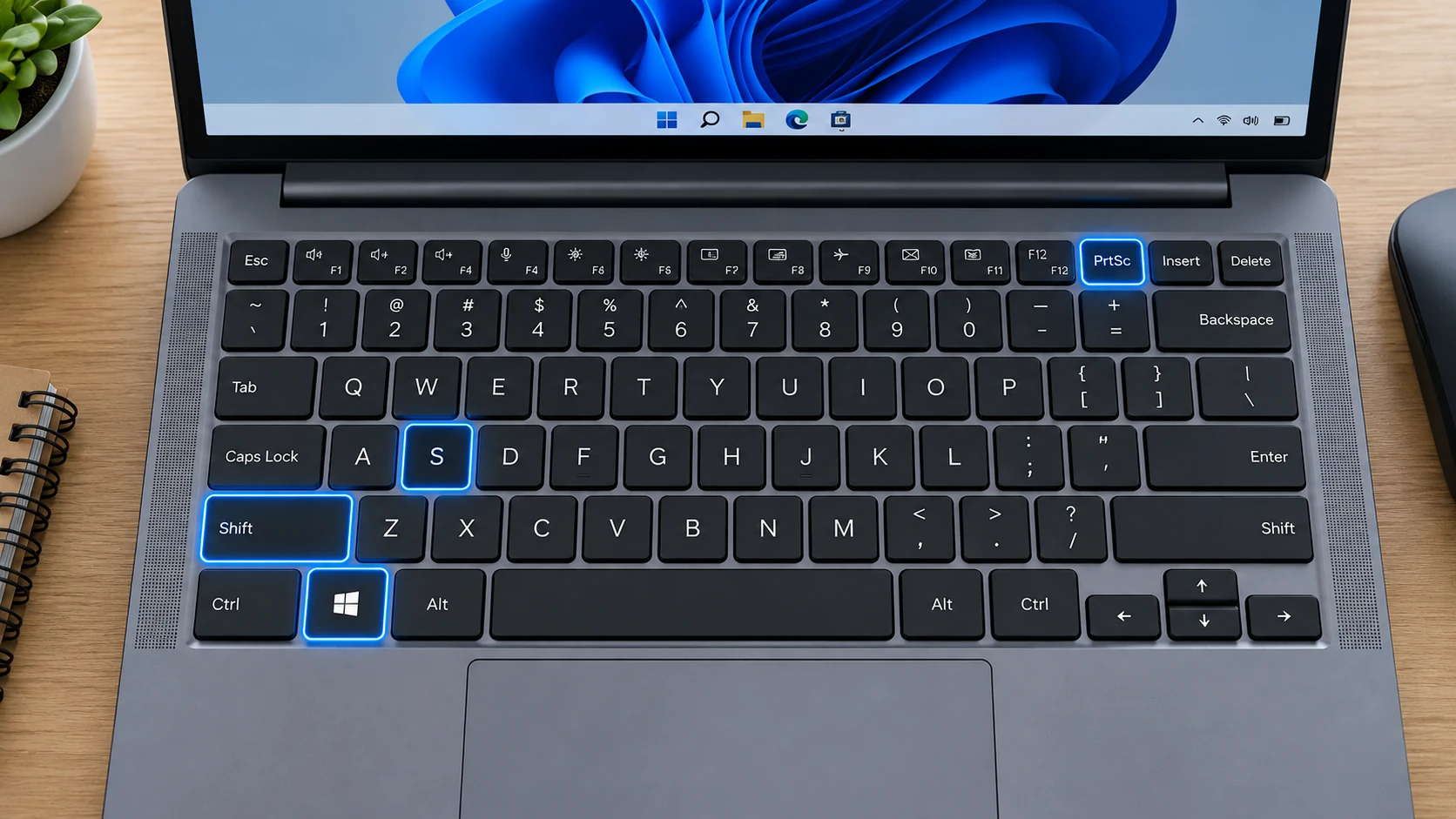
Microsoft Surface keyboard differences
Surface devices need two different mental models: keyboard-attached Windows capture and tablet-style hardware capture. On a Surface Laptop or a Surface Pro with keyboard attached, Windows + Shift + S is the most universal route.
Capture the entire screen
When a Surface keyboard exposes PrtScn, Windows + PrtScn can save the whole desktop. Some Surface keyboards are compact and may not give Print Screen a prominent dedicated key, so Snipping Tool is often faster.
Capture only part of the screen
For a region, press Windows + Shift + S and drag around the required area. On touch-first Surface use, open Snipping Tool from Start or a pinned shortcut and use touch/pen to select the region.
Capture the active window
To capture one desktop window, choose Window mode in Snipping Tool or use Alt + PrtScn if the attached keyboard exposes Print Screen. This is better than cropping a full multi-app desktop afterward.
Where screenshots are saved
Saved Windows images normally go to Pictures > Screenshots. Surface devices often use Microsoft accounts and OneDrive, so the folder may be redirected into OneDrive Pictures when backup is enabled.
When the shortcut does not match your keyboard
Do not copy old Surface button combinations without checking the model generation. Hardware-button screenshot behavior changed across early Surface devices, while current Windows software capture is the more consistent approach.
Scrolling screenshot
For full webpages, Edge Screenshot can capture a full page where available. That browser method is more reliable than treating a Surface as if it has a special scrolling screenshot button.
Troubleshooting
- If the screenshot key is hard to identify on this Microsoft Surface model, open Snipping Tool with Windows + Shift + S instead of testing random function-key combinations.
- When a dual-purpose key performs a media or system action, check Fn Lock and the official documentation for the exact Surface Pro or other model family you own.
- On this Microsoft Surface, if an image seems to be missing, confirm whether your shortcut saved a file or only copied it; then check the active Pictures > Screenshots folder and any OneDrive-backed Pictures location.
Frequently asked questions
Do I need a special Microsoft Surface screenshot app?
No. Built-in Windows capture tools work on Microsoft Surface laptops; manufacturer utilities are optional unless your exact model assigns a special hardware shortcut.
Why does the Print Screen position differ?
Surface Pro, Surface Laptop and Surface Laptop Studio use different keyboard and tablet form factors, so hardware key availability is not identical.
Can I screenshot only one program?
Yes. Use Snipping Tool Window mode, or Alt + PrtScn when the Print Screen function is available on your Microsoft Surface keyboard.
Where is a full-screen file saved?
Windows + PrtScn on a Microsoft Surface PC normally creates a PNG in the active Pictures > Screenshots folder, which may be backed by OneDrive.
Video guide
Sources and verification
Key technical details in this guide were checked against the following current documentation where applicable.