
How to Take a Screenshot on Windows 11?
Every built-in Windows 11 screenshot method, including Snipping Tool, Print Screen, automatic saving, screen recording, multiple monitors, and troubleshooting.
For a selected area, press Win + Shift + S. For an automatically saved full-screen image, use Win + PrtScn. Windows 11 also supports window, free-form and full-screen snips in Snipping Tool.
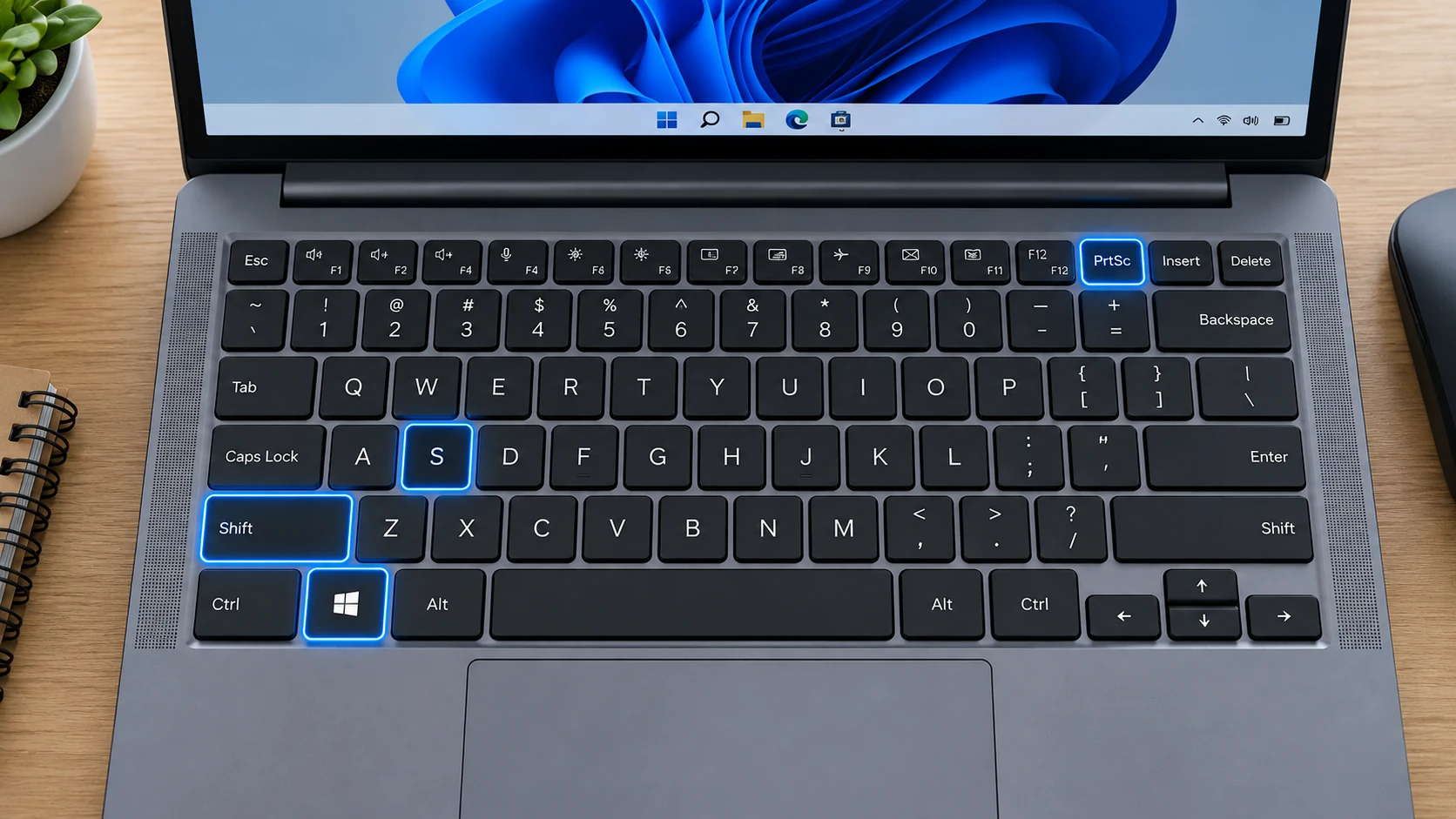
Windows 11 screenshot methods
Windows 11 gives you several built-in routes. Windows + Shift + S opens the Snipping Tool overlay. Windows + PrtScn saves the full desktop to the Screenshots folder. Alt + PrtScn copies the active window. Print Screen can copy the full screen or, depending on the keyboard setting, open screen snipping.
Snipping Tool in current Windows 11
Snipping Tool supports rectangle, free-form, window and full-screen image snips. Current versions can also record a rectangular video area with Windows + Shift + R. On supported Copilot+ PCs, Microsoft also documents features such as Perfect screenshot and Color picker; those features are hardware and version dependent.
Where Windows 11 screenshots are saved
Windows + PrtScn normally creates a PNG under Pictures > Screenshots. If your Pictures folder is backed up by OneDrive, the actual path can be inside the OneDrive Pictures location. Clipboard methods such as Alt + PrtScn require you to paste or save the image unless Snipping Tool autosave is enabled.
Partial, window and multi-monitor captures
Use Rectangle for a precise region, Window mode for a single application, and Full screen for the entire desktop. Print Screen can include all monitors in one combined image; if you want only one monitor, select it with a rectangle or capture a window on that display.
Scrolling screenshots on Windows 11
Windows does not offer one universal scrolling-screenshot command for every desktop app. For webpages, use a browser full-page capture feature when available. For documents, saving or printing to PDF is often more reliable than stitching screenshots.
Taking many screenshots quickly
There is no practical one-shot limit. Automatically saved methods create separate files, while clipboard-only captures can be overwritten by later copy operations. Use Windows + V if Clipboard history is enabled, or save each capture before taking the next one.
Troubleshooting
- If PrtScn appears to do nothing, try Windows + Shift + S or Fn + PrtScn on compact keyboards.
- If the screenshot is missing, check Pictures > Screenshots and OneDrive-backed Pictures.
- If only one monitor is needed, use Rectangle or Window mode instead of full-screen capture.
- If a protected video appears black, the app may intentionally block capture.
Frequently asked questions
Does Windows 11 save screenshots automatically?
Windows + PrtScn does. Snipping Tool behavior depends on its settings; clipboard-only shortcuts do not guarantee a saved file.
Can I record the screen with Snipping Tool?
Yes. Current Windows 11 Snipping Tool versions support rectangular screen recording, and Windows + Shift + R can open the recording overlay.
What format are Windows screenshots?
Windows + PrtScn normally saves PNG files. Other apps can export different formats.
Can I capture one monitor?
Yes. Use Rectangle or Window mode, or crop a full capture afterward.
Video guide
Sources and verification
Key technical details in this guide were checked against the following current documentation where applicable.