
How to Edit a Screenshot?
Crop, annotate, redact, resize and export screenshots safely using built-in tools on Windows, Mac, iPhone/iPad, Android, ChromeOS and Linux.
Start by cropping to the information that matters. Then annotate only what improves understanding, and redact private information before sharing.
Windows
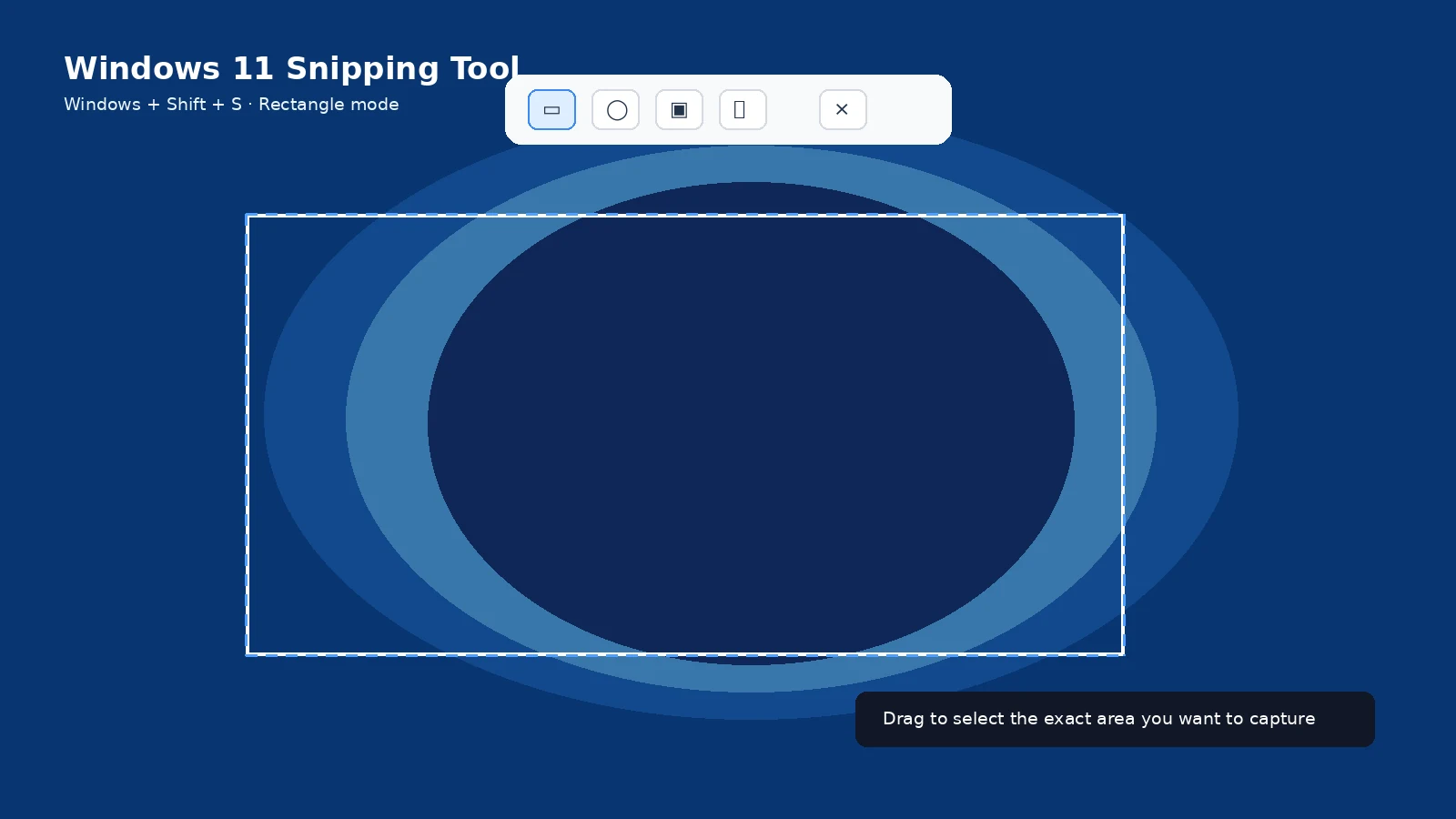
Open the Snipping Tool notification for crop and markup, or use Edit with Paint for text, shapes, resizing and more detailed work.
Mac
Click the floating thumbnail or open the image in Preview. Markup supports crop, shapes, text, signatures and drawing tools.
iPhone and iPad
Tap the screenshot thumbnail and use Markup. You can crop, draw, add text and share directly.
Android
Use the screenshot preview or Photos/Gallery editor. Features differ by manufacturer but usually include crop, markup and share.
ChromeOS and Linux
Open the screenshot from the notification/files app or use the desktop screenshot utility. KDE Spectacle includes annotation tools; other environments may open an image editor.
Redaction warning
Blurring can sometimes leave information partially recoverable or visually guessable. For sensitive data, crop it out or cover it with an opaque shape and verify the exported image.
Troubleshooting
- Always inspect the final exported file, not just the editor preview.
- Keep an untouched original if the screenshot is evidence or documentation.
Frequently asked questions
Should I use PNG or JPG for text?
PNG is usually better for interface text and sharp edges.
Can I edit without third-party apps?
Yes on all major platforms.
How should I hide sensitive data?
Crop it out or cover it with an opaque block, then recheck the exported image.
Can editing reduce quality?
Repeated lossy JPEG saves can; PNG avoids that kind of generational loss.
Video guide
Sources and verification
Key technical details in this guide were checked against the following current documentation where applicable.