
How to Take a Screenshot on iPad?
iPad screenshot methods for models with and without a Home button, Apple Pencil, Full Page captures, Photos/Files saving and troubleshooting.
On iPads without a Home button, quickly press and release Top + either Volume button. On iPads with Home, use Top + Home.
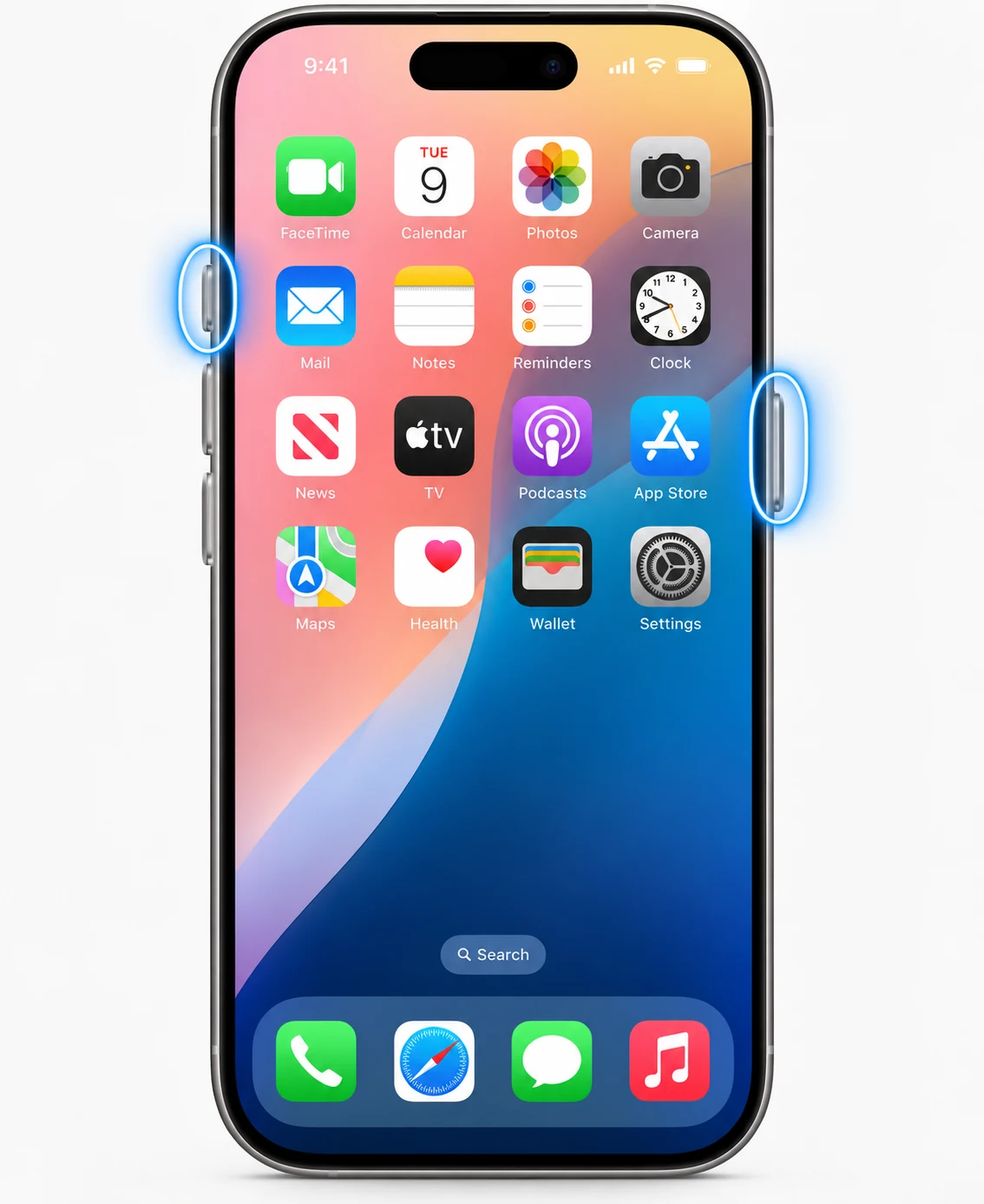
No Home button
Apple’s current iPad guidance uses the top button with either volume button, pressed and released quickly.
Home-button iPad
Press the top button and Home button together, then release.
Apple Pencil
Supported iPads can use an Apple Pencil corner gesture to take a screenshot. Gesture configuration can affect what happens.
Full Page
Tap the screenshot thumbnail and choose Full Page when the current app/content supports it. You can save the result as an image to Photos or as a PDF to Files in current iPadOS workflows.
Where to find screenshots
Open Photos > Collections > Media Types > Screenshots. PDFs saved through the Files workflow live in the folder you chose.
Editing
Use Markup to crop, draw, add text and highlight. Save a clean copy after removing private information.
Troubleshooting
- If the wrong action occurs, release the button combination faster.
- If Apple Pencil does not capture, check the configured corner gesture.
Frequently asked questions
Which volume button do I press?
Apple currently states either volume button on iPad models without Home.
Can I save a full-page screenshot as PDF?
Yes on supported content using the full-page screenshot workflow.
Where are normal screenshots stored?
In Photos under Screenshots.
Can I use AssistiveTouch?
Yes, accessibility controls can provide screenshot actions.
Video guide
Sources and verification
Key technical details in this guide were checked against the following current documentation where applicable.