
How to Take a Screenshot on Windows 10?
A complete Windows 10 screenshot guide covering Snipping Tool, Print Screen, active-window capture, save locations, editing, and common laptop key variations.
Use Win + Shift + S for a selected region. Use Win + PrtScn to save the entire desktop automatically to Pictures > Screenshots.
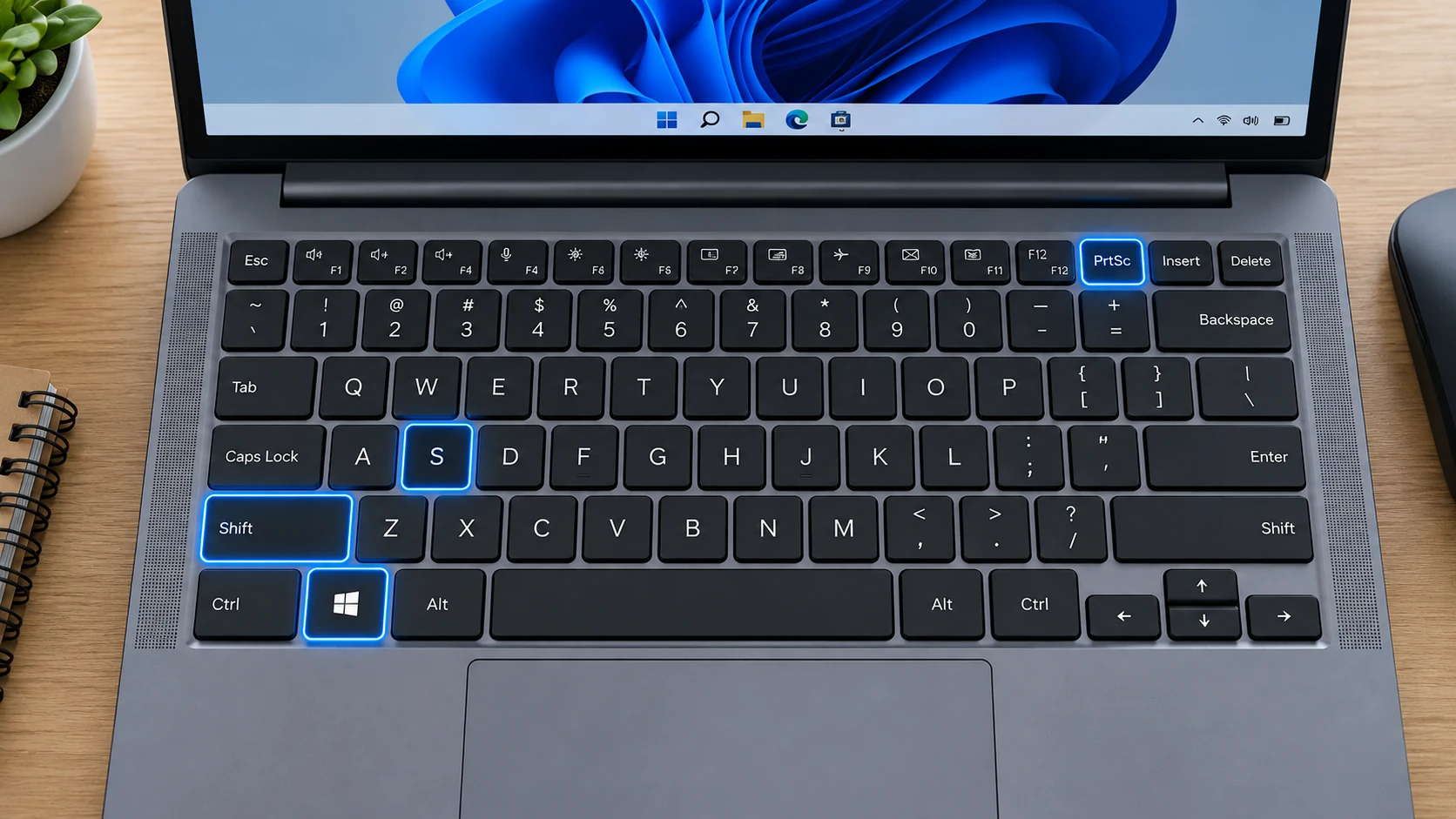
Fastest built-in methods
Windows 10 supports the same core keyboard shortcuts most people still use today: Windows + Shift + S for a region, Alt + PrtScn for the active window, PrtScn for a full-screen clipboard capture, and Windows + PrtScn for automatic saving.
Snipping Tool and legacy behavior
Windows 10 installations can differ because Snip & Sketch and Snipping Tool changed over the life of the operating system. Windows + Shift + S remains the most dependable shortcut for a selected region on supported builds.
Where files go
Windows + PrtScn typically saves to Pictures > Screenshots. Clipboard captures need to be pasted into Paint, an email, Word, an image editor, or another app before they are saved as files.
Laptop keyboard differences
Print Screen may be labelled PrtSc, PrtScn, PrntScrn or share a key with another function. On some laptops you must also hold Fn. If you cannot identify the key, Windows + Shift + S avoids that problem entirely.
Scrolling and long pages
There is no universal scrolling capture for every Windows 10 app. Browser full-page capture or PDF export is generally safer for long webpages and documents.
Editing and annotation
Open a Snipping Tool notification or paste into Paint. Crop away private information and use simple annotations only when they improve clarity.
Troubleshooting
- Try Fn + PrtScn if the key is shared with another function.
- If no file appears, remember that PrtScn and Alt + PrtScn are clipboard-first methods.
- If Windows + Shift + S is disabled, search Start for Snipping Tool and check Windows updates.
Frequently asked questions
Where are Windows 10 screenshots stored?
On Windows 10, Windows + PrtScn typically creates the PNG inside your Pictures > Screenshots folder, unless the Pictures library is redirected.
Does PrtScn save a file?
Usually it copies to the clipboard; use Windows + PrtScn for automatic saving.
Can I capture only one window?
Yes. Select the window and press Alt + PrtScn.
Can I take multiple screenshots?
Yes. File-based captures can be taken repeatedly; clipboard captures should be saved or managed with Clipboard history.
Video guide
Sources and verification
Key technical details in this guide were checked against the following current documentation where applicable.