
How to Take a Screenshot on an HP Laptop?
HP laptops use standard Windows screenshot tools; key legends and Fn behavior can differ by model.
HP notes that PrtScn may require Fn on some laptops. The most model-independent shortcut is Windows + Shift + S.
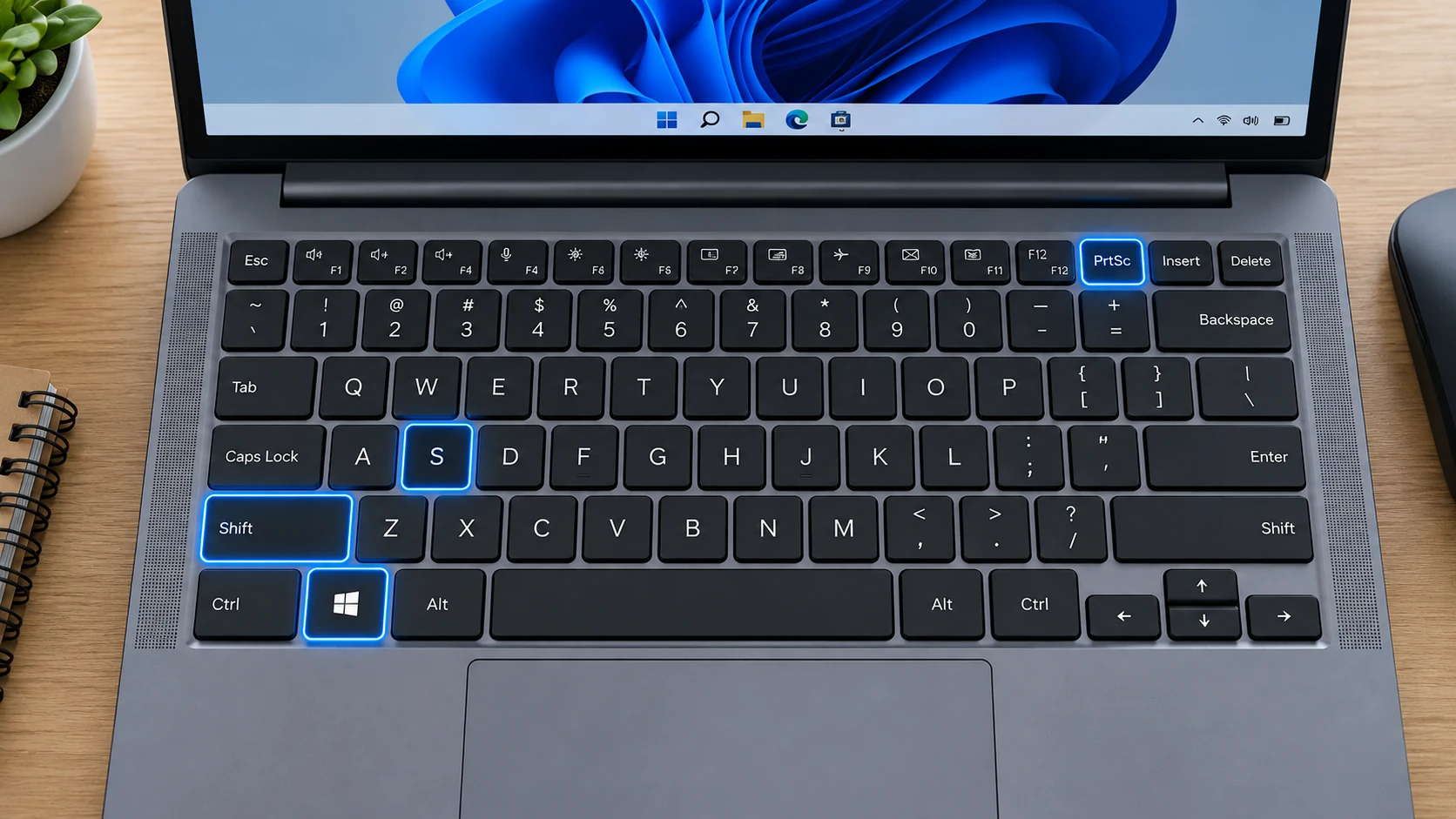
HP keyboard differences
On HP laptops, the printed label can be PrtSc, PrtScn or share a key with another function. Compact Pavilion and Envy layouts can differ from gaming Omen/Victus or business ProBook keyboards, so treat the key legend on the actual machine as the authority.
Capture the entire screen
If your HP keyboard exposes Print Screen directly, Windows + PrtScn saves a full desktop capture. On an HP model where Print Screen is secondary, the Fn requirement depends on the keyboard layout; Windows + Shift + S avoids that uncertainty altogether.
Capture only part of the screen
For a cropped area on an HP laptop, press Windows + Shift + S and use Rectangle mode. This works even when the physical Print Screen legend is small, combined with another key or absent.
Capture the active window
To capture only the foreground app, Alt + PrtScn is the fast keyboard route when PrtScn is accessible. Snipping Tool Window mode is easier when the HP keyboard makes Print Screen awkward to reach.
Where screenshots are saved
Automatically saved Windows captures are normally under Pictures > Screenshots, or the OneDrive-backed Pictures location if folder backup/redirect is enabled. A plain Print Screen capture can exist only on the clipboard until you paste it.
When the shortcut does not match your keyboard
If an HP shortcut shown online does not match your laptop, identify the exact product number or model series and use HP documentation for that keyboard. Do not assume a Pavilion combination is identical on Spectre, Omen or a detachable device.
Scrolling screenshot
For a long web page on an HP laptop, use the browser full-page capture feature when available. The laptop brand does not add a universal scrolling screenshot command to Windows.
Troubleshooting
- If the screenshot key is hard to identify on this HP model, open Snipping Tool with Windows + Shift + S instead of testing random function-key combinations.
- When a dual-purpose key performs a media or system action, check Fn Lock and the official documentation for the exact Pavilion or other model family you own.
- On this an HP Laptop, if an image seems to be missing, confirm whether your shortcut saved a file or only copied it; then check the active Pictures > Screenshots folder and any OneDrive-backed Pictures location.
Frequently asked questions
Do I need a special HP screenshot app?
No. Built-in Windows capture tools work on HP laptops; manufacturer utilities are optional unless your exact model assigns a special hardware shortcut.
Why does the Print Screen position differ?
HP uses several keyboard layouts across Pavilion, Envy, Spectre, Victus, Omen and ProBook. Compact and gaming models can assign secondary functions differently.
Can I screenshot only one program?
Yes. Use Snipping Tool Window mode, or Alt + PrtScn when the Print Screen function is available on your HP keyboard.
Where is a full-screen file saved?
Windows + PrtScn on a HP PC normally creates a PNG in the active Pictures > Screenshots folder, which may be backed by OneDrive.
Video guide
Sources and verification
Key technical details in this guide were checked against the following current documentation where applicable.