
How to Take a Screenshot of a Selected Area on Mac?
Use Shift + Command + 4, drag a precise selection, reposition it with Space, cancel with Escape, and copy to clipboard when needed.
Press Shift + ⌘ Command + 4, then drag the crosshair around the area.
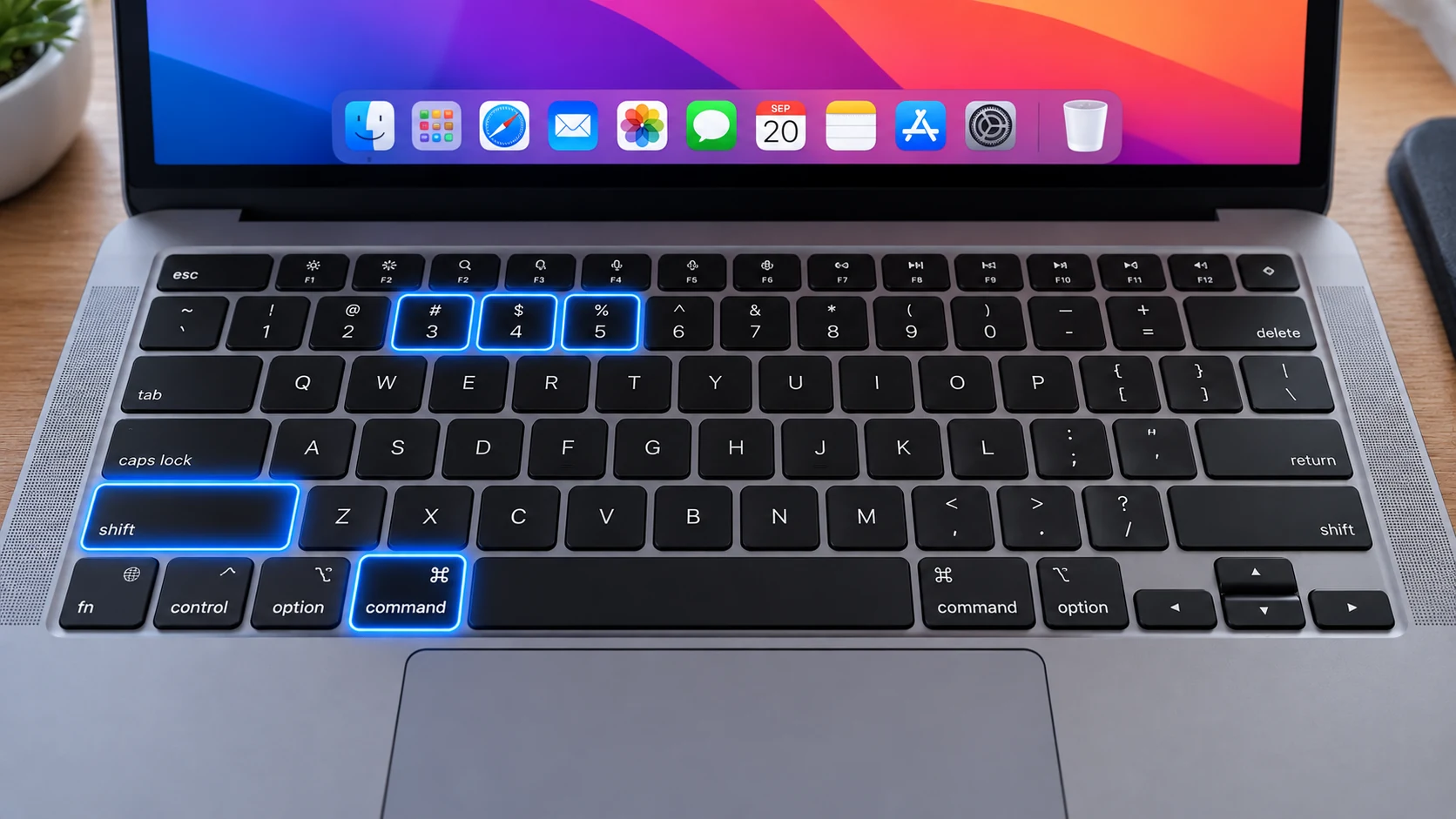
Start a precise region capture
Press Shift + Command + 4. The pointer becomes a crosshair; drag from one corner of the content to the opposite corner and release to capture. Press Escape before releasing if you want to cancel.
Move the selection without resizing it
While you are still dragging the region, hold Space and move the pointer. macOS moves the existing selection box instead of changing its dimensions, which is useful when your initial start point was slightly wrong.
Adjust only one edge
Modifier behavior during a Shift + Command + 4 drag can help refine a region, but for most users the simplest accurate method is to cancel and redraw the box if the selection is badly placed.
Copy the region to the clipboard
Add Control: Control + Shift + Command + 4. The selected region is copied so you can paste it immediately rather than creating the usual file at the screenshot destination.
Where a selected capture is stored
Without Control, the image follows the screenshot save destination configured in Shift + Command + 5 > Options. Desktop is the normal default, but a custom folder may be active.
Privacy advantage of region capture
Selecting only the relevant area reduces accidental exposure of menu-bar status icons, notifications, browser tabs and unrelated applications. It is often the best format for bug reports and instructions.
Troubleshooting
- If the crosshair never appears, review the screenshot keyboard shortcuts in System Settings.
- If the region is wrong, press Escape and start again rather than trying to repair a heavily cropped screenshot later.
- If nothing was saved, check whether you accidentally held Control and copied the capture to the clipboard instead.
Frequently asked questions
What shortcut selects part of the Mac screen?
Shift + Command + 4 starts a selectable-region capture.
Can I reposition the selection box?
Yes. Hold Space while dragging to move the current box without changing its size.
How do I cancel a region screenshot?
Press Escape before releasing the mouse or trackpad.
Can I send the selected area straight to the clipboard?
Yes. Use Control + Shift + Command + 4.
Video guide
Sources and verification
Key technical details in this guide were checked against the following current documentation where applicable.