
How to Use the Screenshot Toolbar on Mac?
Open Shift + Command + 5 for capture modes, screen recording, timer, save location, pointer and thumbnail options.
Press Shift + ⌘ Command + 5 to open the Screenshot app controls.
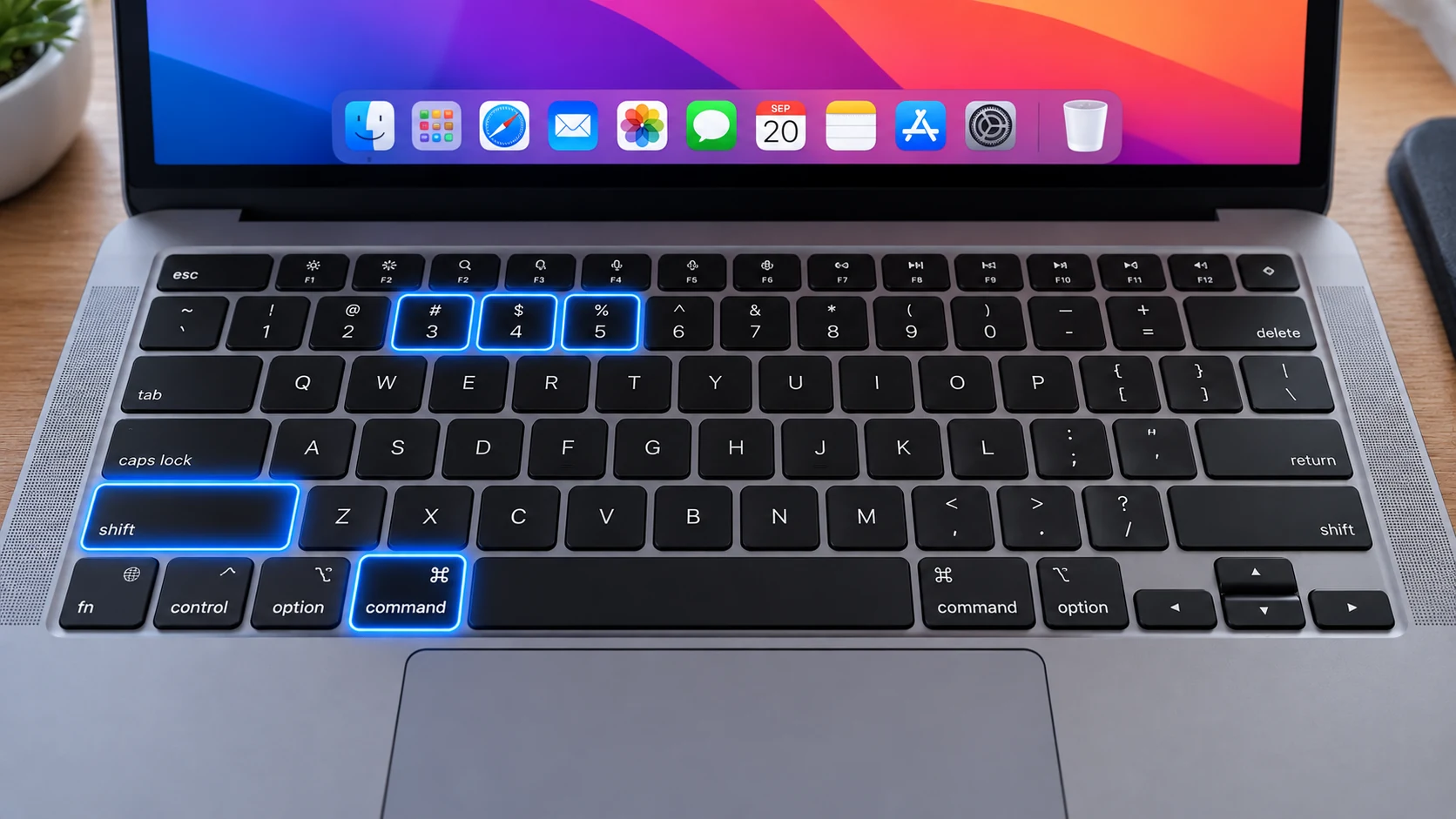
Open the Screenshot app controls
Shift + Command + 5 opens a control bar for full-screen, window and selected-portion screenshots plus full-screen or selected-area recordings. It is the best place to use when you want visual controls instead of memorizing several shortcuts.
Use Options deliberately
Options can set a 5- or 10-second timer, choose the save destination, remember the last selection, show or hide the floating thumbnail and control whether the mouse pointer appears in captures.
Choose capture or recording
The first group of icons creates still images; the recording icons create video. Pick a screenshot when one frame is enough and a recording only when motion, animation or timing is important.
Set the destination before capturing
If you are collecting many images for a project, change the save destination once in Options rather than moving every file afterward. The selected destination persists until you change it again.
Use timers for transient menus
A delay is useful when clicking Capture would otherwise close a menu, tooltip or hover state. Start the timer, recreate the state and let macOS capture after the countdown.
Current HDR option
On supported Macs running sufficiently recent macOS, Apple documents an HDR screen-capture option that saves HEIF. Keep SDR/PNG when your priority is compatibility with websites, tickets and cross-platform viewers.
Troubleshooting
- If the toolbar opens but Capture is unavailable, confirm a valid capture mode or region is selected.
- If recordings have no useful result, check that you chose the correct screen/area before starting and stop the recording from the menu bar.
- If files keep going to an unexpected folder, reset Save to under Options.
Frequently asked questions
What does Shift + Command + 5 open?
It opens the macOS Screenshot controls for still images and screen recordings.
Can I set a timer there?
Yes. Options provides built-in screenshot delays.
Can the toolbar change where screenshots save?
Yes. Choose a destination under Options before capturing.
Does the toolbar record video too?
Yes. It includes full-screen and selected-area recording modes.
Video guide
Sources and verification
Key technical details in this guide were checked against the following current documentation where applicable.