
How to Change Where Screenshots are Saved on Mac?
Use the Screenshot app Options menu to change the save destination and find screenshots that no longer appear on the Desktop.
Press Shift + ⌘ Command + 5, open Options, then choose a save location.
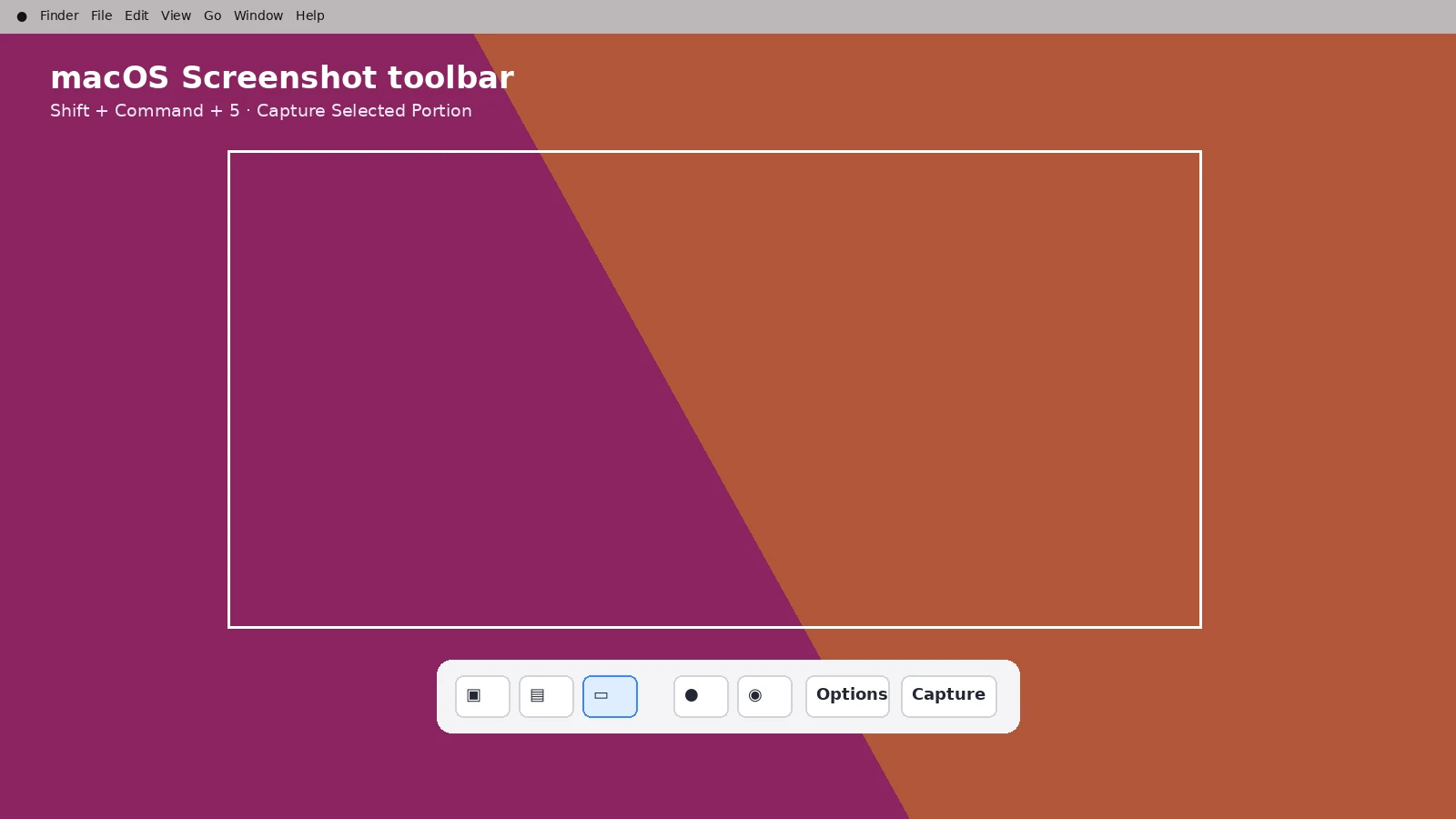
Change the Folder from the Screenshot App
Press Shift + Command + 5, choose Options, then pick Desktop, Documents, Clipboard or another available destination. Use Other Location when you want a specific project folder.
Why the Setting Seems to Persist?
macOS remembers the screenshot destination. If files suddenly stop appearing on the Desktop, the usual cause is that Save to was changed previously rather than a broken screenshot shortcut.
Use a Project-specific Folder
For tutorials, QA work or evidence collection, create a dedicated folder first and choose it as the screenshot destination. This keeps captures separate from ordinary desktop clutter and makes later sorting easier.
Clipboard is Not a Normal Folder
Choosing a clipboard workflow means there may be no saved image file until you paste it into an app. Do not rely on clipboard-only capture when the image must be retained independently.
Icloud and Synced Folders
If you choose Desktop or Documents and those folders are synchronized by iCloud Drive, the file can appear on other devices according to your sync settings. That is different from the screenshot feature itself uploading the file.
Reset to the Familiar Default
To return to the standard behavior, open Shift + Command + 5 > Options and select Desktop. New screenshots will use that destination going forward.
Troubleshooting
- If the selected destination is unavailable, choose a local folder you can write to and test with a new screenshot.
- If a screenshot exists in search but not where expected, review the current Save to selection and any iCloud Drive folder redirection.
- If you copied to the clipboard instead of saving, paste the image into Preview or another editor and save it manually.
Frequently Asked Questions
How do I change the Mac screenshot folder?
Open Shift + Command + 5 > Options and choose a new Save to destination.
Why did screenshots stop appearing on the Desktop?
The destination may have been changed previously or Desktop may be synchronized through iCloud Drive.
Can I save directly into a project folder?
Yes. Use Other Location from the Screenshot app Options menu.
Can I switch back to Desktop later?
Yes. Choose Desktop again under Save to.
Video Guide
Sources and Verification
Key technical details in this guide were checked against the following current documentation where applicable.