
How to Take a Timed Screenshot on Mac?
Use Shift + Command + 5 and the Options menu to delay a capture for menus, hover states and other temporary interface elements.
Open Shift + ⌘ Command + 5, choose a timer in Options, then start the capture.
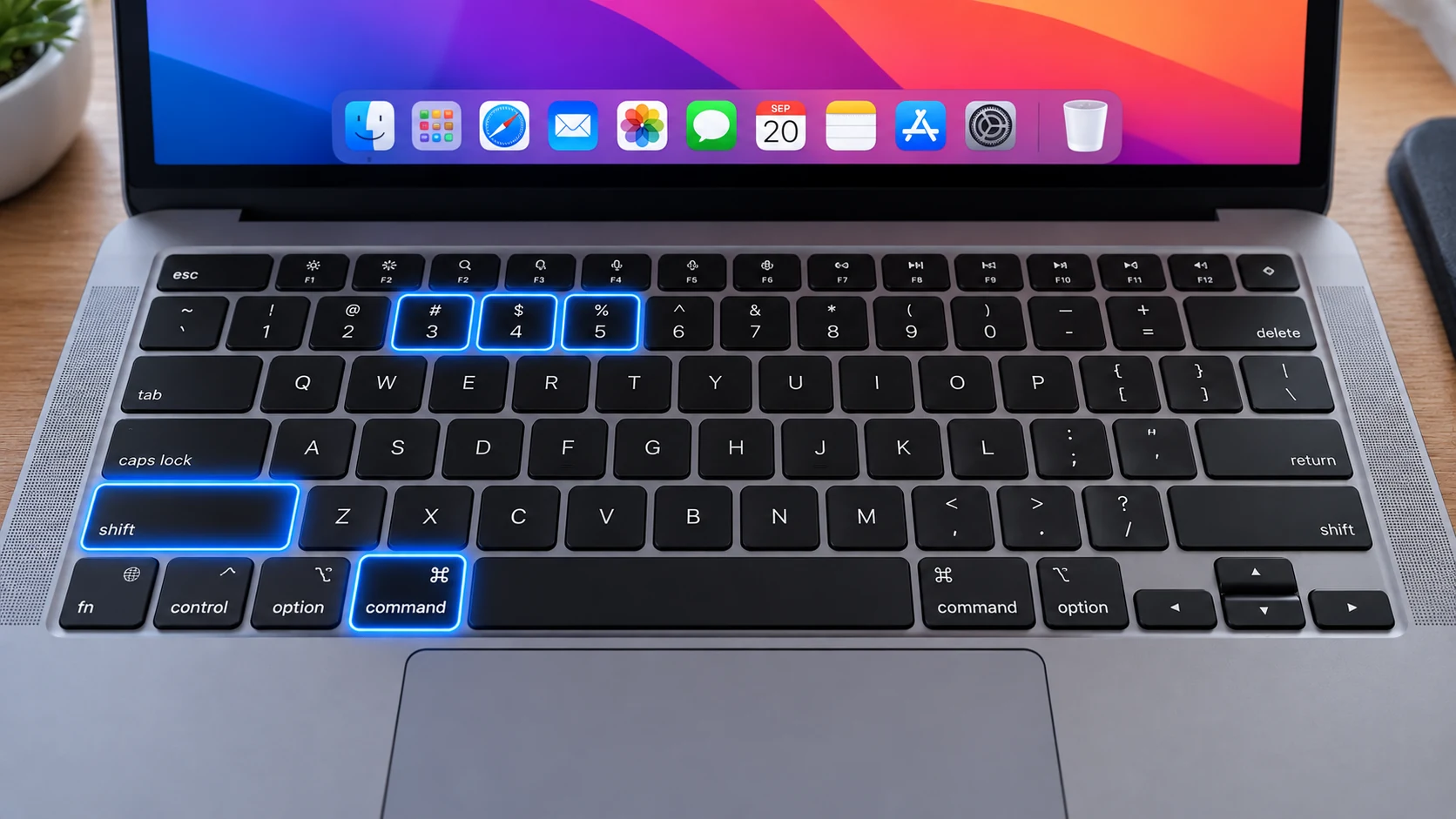
Set a built-in delay
Press Shift + Command + 5, open Options and choose the available timer delay before capturing. Start the capture, then arrange the interface you want visible during the countdown.
Capture menus that close too quickly
A timer is useful for dropdown menus, hover states, tooltips and other UI that disappears as soon as you click elsewhere. Set the delay first, then reopen the transient interface and keep it visible.
Choose the region before countdown
For a selected-area timed capture, define the region and make sure it covers the place where the temporary UI will appear. This reduces the need for a second capture.
Use the right destination
Before starting a series of delayed screenshots, confirm Save to in Options. Timers do not change where the resulting image is stored.
Timer versus screen recording
If the important state lasts only a moment, a delayed screenshot can capture it cleanly. If the sequence itself matters, use the recording controls from Shift + Command + 5 instead.
Avoid capturing private notifications
A timer creates a short period where the screen can change unexpectedly. Silence unnecessary notifications and close unrelated apps before starting a sensitive timed capture.
Troubleshooting
- If the countdown finishes before the menu is ready, choose the longer delay and rehearse the steps once first.
- If the timed image goes to an unexpected place, correct the Save to setting separately from the timer.
- If a transient UI still vanishes, consider recording the screen and extracting the relevant frame only when permitted.
Frequently asked questions
Does Mac have a built-in screenshot timer?
Yes. Open Shift + Command + 5 and choose a delay under Options.
Is a timer useful for menus?
Yes. It gives you time to reopen menus or hover states before the capture fires.
Does the timer change the save folder?
No. Destination and timer are separate Options settings.
Should I use a timer or screen recording?
Use a timer for one temporary state; use recording when the sequence or motion itself matters.
Video guide
Sources and verification
Key technical details in this guide were checked against the following current documentation where applicable.