
How to Take a Full-Screen Screenshot on Mac?
Use Shift + Command + 3, understand multi-display output, clipboard capture, file formats and where the screenshot is saved.
Press Shift + ⌘ Command + 3 and release the keys together.
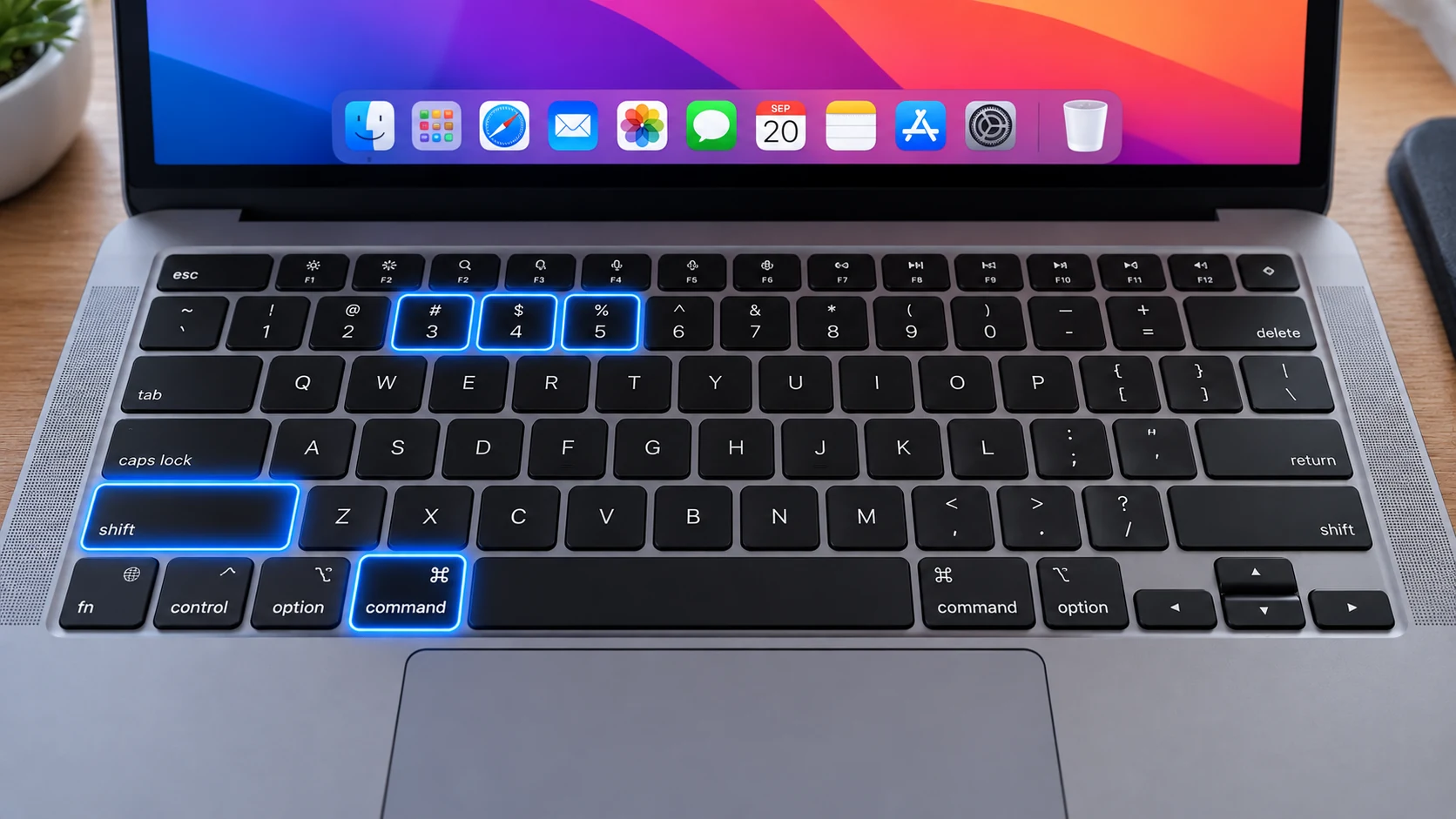
Capture every display with Shift + Command + 3
Press Shift + Command + 3 to capture the entire Mac desktop. On a Mac with multiple displays, macOS can create a separate image for each display rather than squeezing every monitor into one giant bitmap.
Save versus copy
The normal shortcut writes files using the configured screenshot destination. Add Control—Control + Shift + Command + 3—when you want the result on the clipboard so you can paste it directly into Mail, Messages, Preview or a document.
Where the files appear
Desktop is the default destination on a standard Mac setup. Open Shift + Command + 5 > Options if your captures are going somewhere else; that menu can point to Documents, Clipboard or another chosen folder.
Use the floating thumbnail
After capture, the floating thumbnail gives you a short window to open Markup, crop or share the image. You can drag the thumbnail into a folder or document before the automatic save completes.
Format choices on current macOS
Standard SDR Mac screenshots use PNG. On supported hardware with macOS Tahoe 26 or later, Apple documents an HDR option in the Screenshot app that can save in HEIF; choose SDR/PNG for the broadest compatibility.
When full-screen is the wrong method
A full-screen image can expose notifications, menu-bar items, account names or content from another display. For support or documentation, a selected area often communicates the issue more clearly and reveals less unrelated information.
Troubleshooting
- If Shift + Command + 3 produces nothing, confirm screenshot shortcuts are enabled in System Settings > Keyboard > Keyboard Shortcuts > Screenshots.
- If the expected file is not on the Desktop, open Shift + Command + 5 > Options to see the current destination.
- If one display is missing from a multi-monitor capture, verify the display is active and consider capturing each screen separately.
Frequently asked questions
Does Shift + Command + 3 capture the whole Mac screen?
Yes. With multiple active displays, macOS can save separate full-screen images for each display.
Can I copy a full-screen Mac screenshot without saving it?
Yes. Add Control to make the shortcut Control + Shift + Command + 3.
Why is my file not on the Desktop?
The save destination may have been changed in the Screenshot app Options menu.
Can current Macs save HDR screenshots?
On supported Macs and macOS versions, Apple documents an HDR option that uses HEIF.
Video guide
Sources and verification
Key technical details in this guide were checked against the following current documentation where applicable.