
How to Screenshot on an iPhone with Face ID?
Use Side + Volume Up correctly, understand the preview, Full Page option, alternate methods and fixes when the buttons trigger another action.
Quickly press and release Side + Volume Up at the same time.
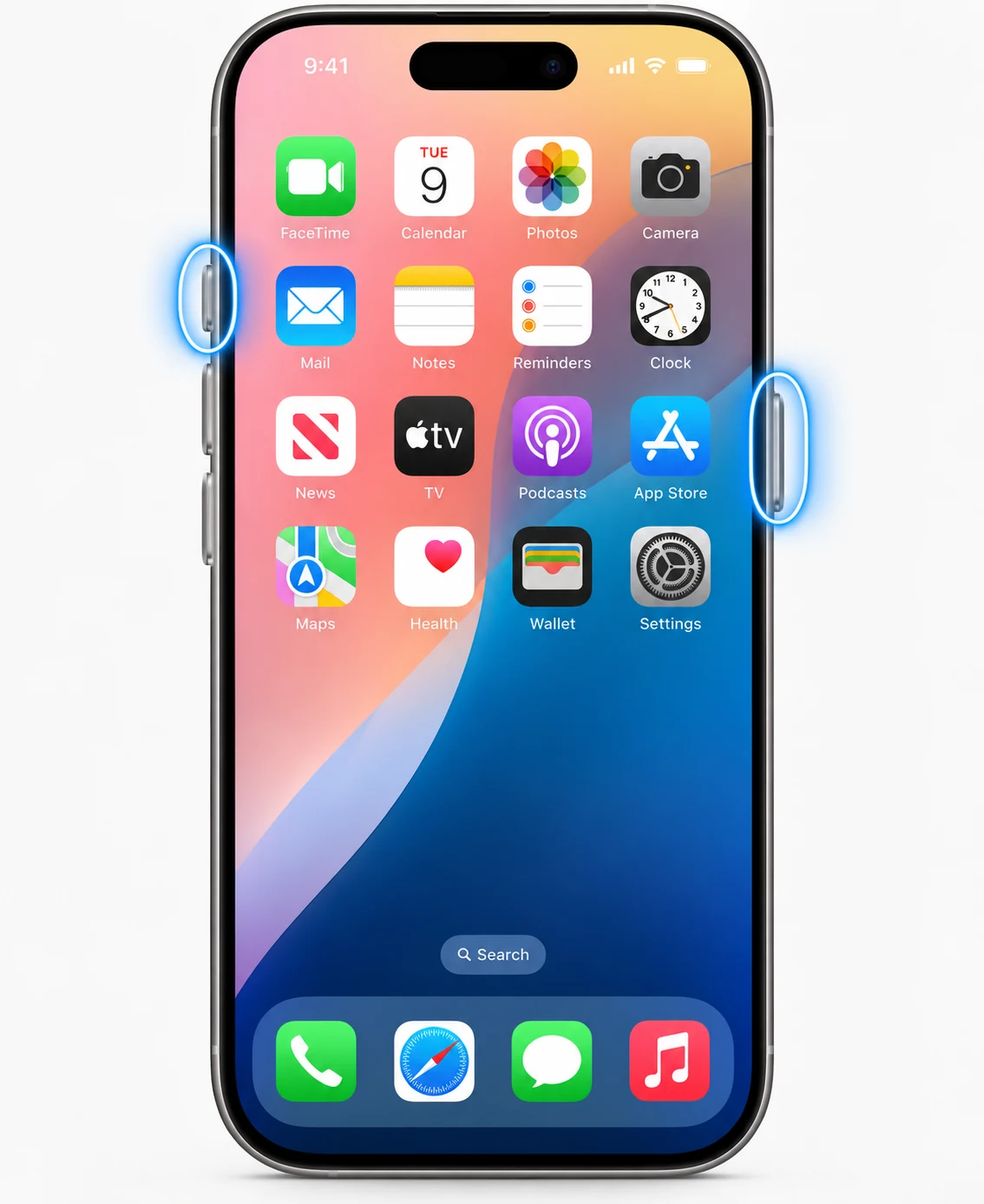
Correct timing
Press both buttons together and release promptly. Holding them can start a different system action instead of a screenshot.
Thumbnail preview
Tap the thumbnail to crop, annotate, share or use Full Page where supported. Swipe it away or ignore it to save normally.
Where it saves
Normal screenshots go to the Photos library and can be found under Screenshots.
Without buttons
Use Siri, AssistiveTouch or Back Tap if a physical button is difficult to press.
Full Page
Supported apps can expose Full Page in the editor, allowing capture beyond the visible viewport.
Sharing safely
Crop notification banners and personal information before sending the image.
Troubleshooting
- Remove a case that is interfering with the buttons.
- Test Side and Volume Up separately if the shortcut never works.
Frequently asked questions
Does Face ID itself take the screenshot?
No. Face ID models use Side + Volume Up because they do not have a Home button.
Where does it save?
Photos > Screenshots.
Can I use Back Tap?
Yes after configuring Back Tap for Screenshot on supported iPhones.
Can I take multiple screenshots quickly?
Yes. Each capture saves separately as long as storage is available.
Video guide
Sources and verification
Key technical details in this guide were checked against the following current documentation where applicable.