
How to Screenshot on an iPhone with a Home Button?
Use the Side/Top button with Home on older iPhone models, find the screenshot in Photos, and troubleshoot timing or button problems.
Press the Side or Top button + Home together, then release quickly.
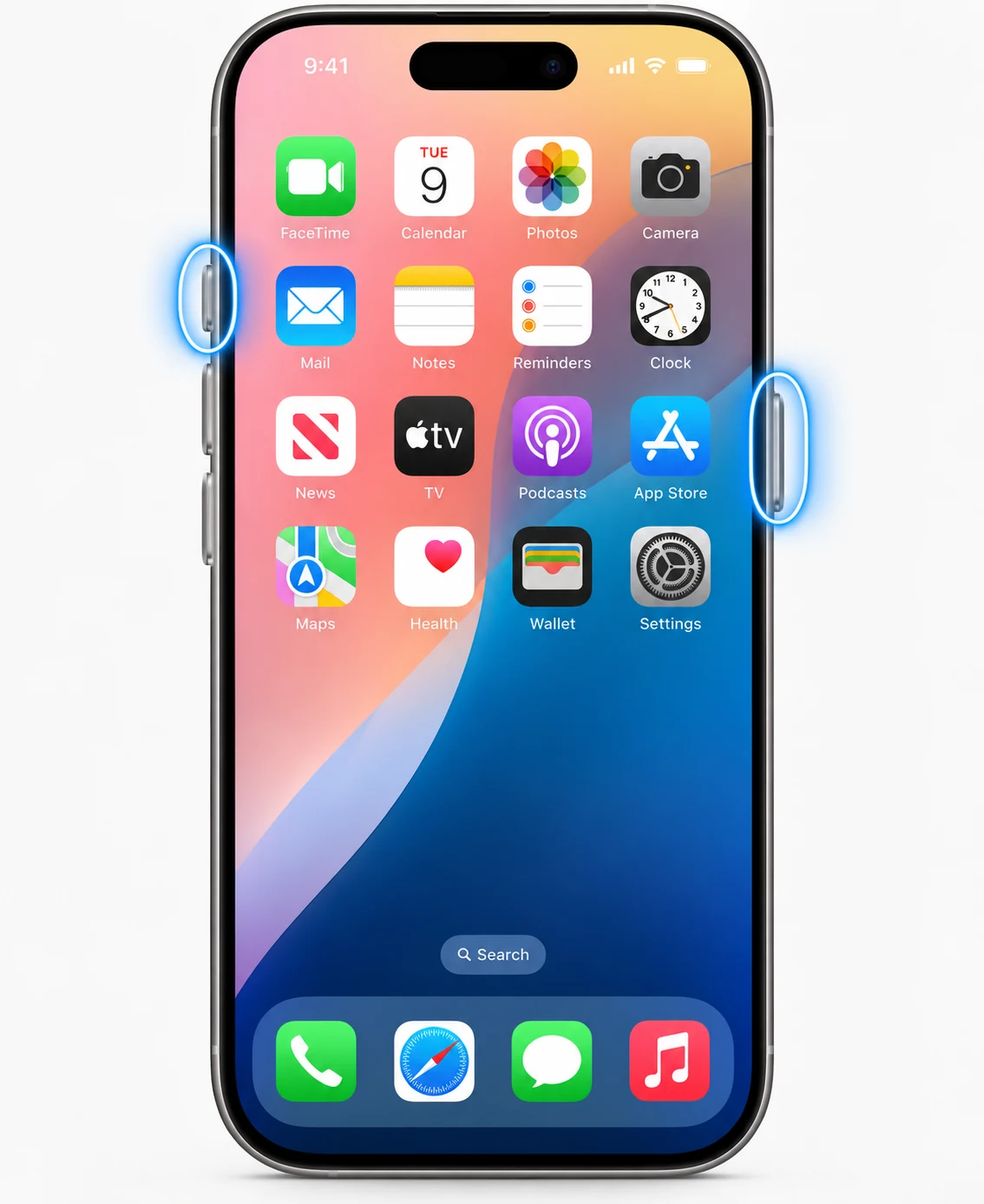
Which top/side button
Older iPhones place Sleep/Wake differently by generation. Use the power/sleep button plus Home rather than Volume Up.
Preview and saving
A thumbnail appears after capture. Tap it to edit or share, or dismiss it so the image saves to Photos.
Where it saves
Open Photos and use the Screenshots collection.
If a button is unreliable
Use AssistiveTouch or Siri instead of repeatedly forcing a damaged hardware button.
Full Page
Supported iOS versions can still offer Full Page for compatible content, even on Home-button models that can run those versions.
Privacy
Before sharing an old-device screenshot, check the status bar, notification previews and account names just as you would on a newer iPhone.
Troubleshooting
- Press and release rather than holding.
- Confirm the Home button itself still works.
Frequently asked questions
Does Volume Up work on Home-button iPhones?
The standard shortcut for Home-button models uses Home with the Side/Top button.
Where are screenshots saved?
Photos > Screenshots.
Can I screenshot without the Home button?
Yes. AssistiveTouch can provide a software screenshot action.
Why does the phone lock instead?
The buttons may not be pressed at the same time.
Video guide
Sources and verification
Key technical details in this guide were checked against the following current documentation where applicable.