
Screenshot vs Screen Recording: Which Should You Use?
Choose between a still screenshot and a screen recording based on whether you need one visual state or a sequence of actions.
Use a screenshot for one moment or result. Use a screen recording when movement, timing, interaction or audio is important.
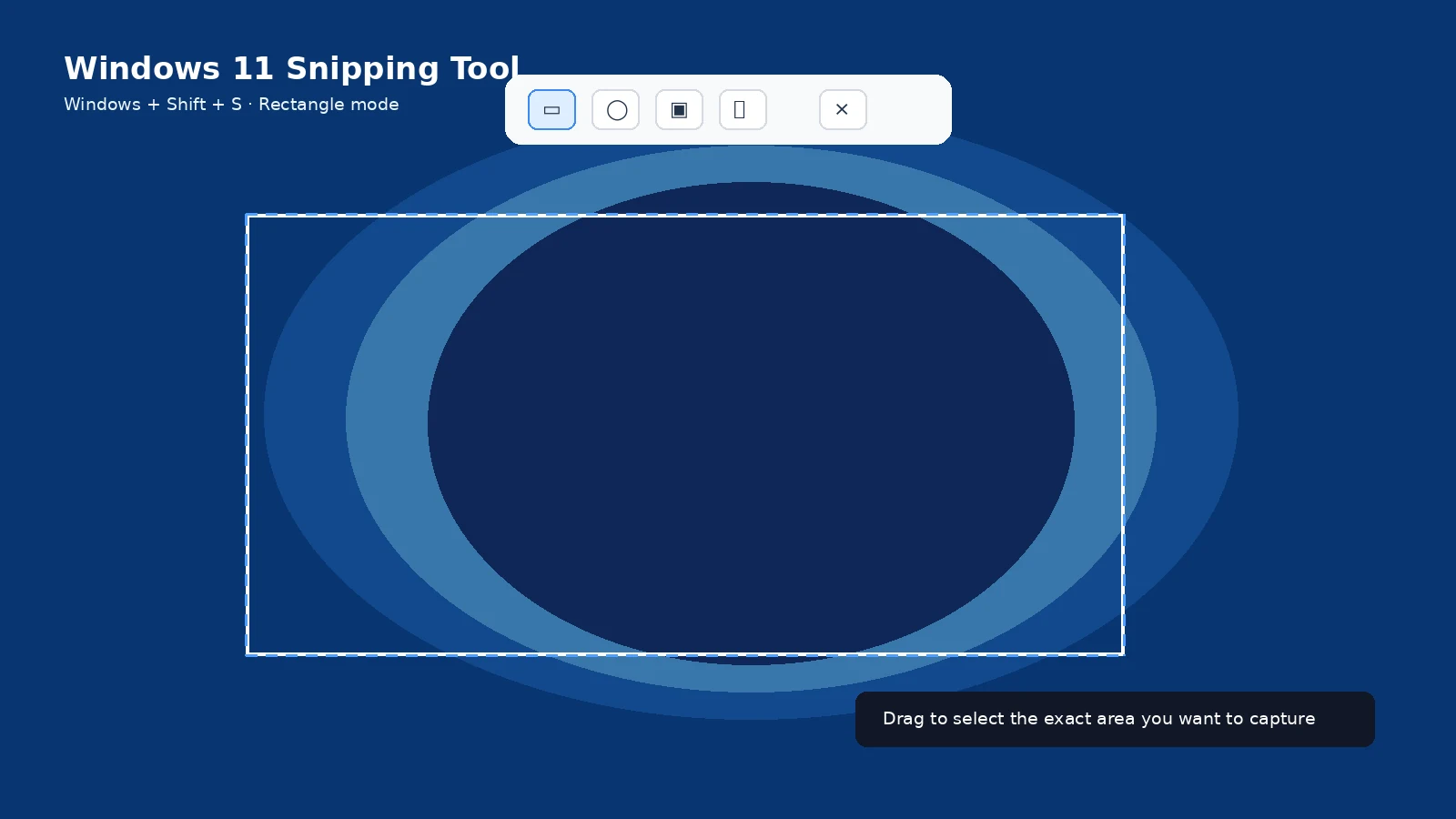
When a screenshot is better
Error messages, receipts, settings, static instructions, design feedback and one-step proof are usually clearer as screenshots.
When recording is better
Use video for reproducing a bug, teaching a multi-step workflow, demonstrating animation, or showing something that disappears too quickly.
File size
A screenshot is much smaller than a recording and easier to attach to email or support tickets.
Privacy
A recording can unintentionally capture more notifications, conversations or audio than a screenshot. Prepare the screen and silence unnecessary notifications first.
Editing
Screenshots are easy to crop and annotate. Recordings require trimming and may need captions or callouts to be understandable.
Platform tools
Windows Snipping Tool, macOS Screenshot, ChromeOS Screen Capture and Android/iOS built-in controls provide both capture types in various forms.
Troubleshooting
- If a support team asks for one error state, send a screenshot instead of a long video.
- If the problem only appears during interaction, record the shortest sequence that reproduces it.
Frequently asked questions
Does a screen recording include audio?
It can, depending on the platform and settings.
Which is easier to share?
A screenshot is usually smaller and faster.
Can a screenshot show motion?
No.
Can I annotate both?
Yes, but still images are easier to mark up precisely.
Video guide
Sources and verification
Key technical details in this guide were checked against the following current documentation where applicable.