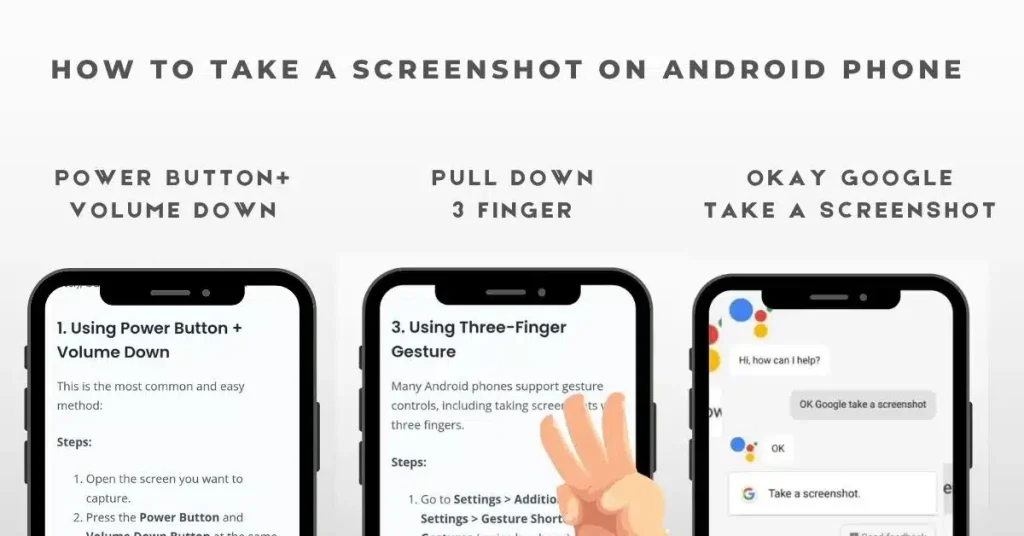
How to take a screenshot on Android
One button combination works on nearly every Android phone and tablet.
Some Android devices have a Screenshot button on the status bar at the top of the screen. Users can simply click on it to take a screenshot. You can take a screenshot on Android using specific buttons, too. To take a screenshot on Android, follow the given instructions.
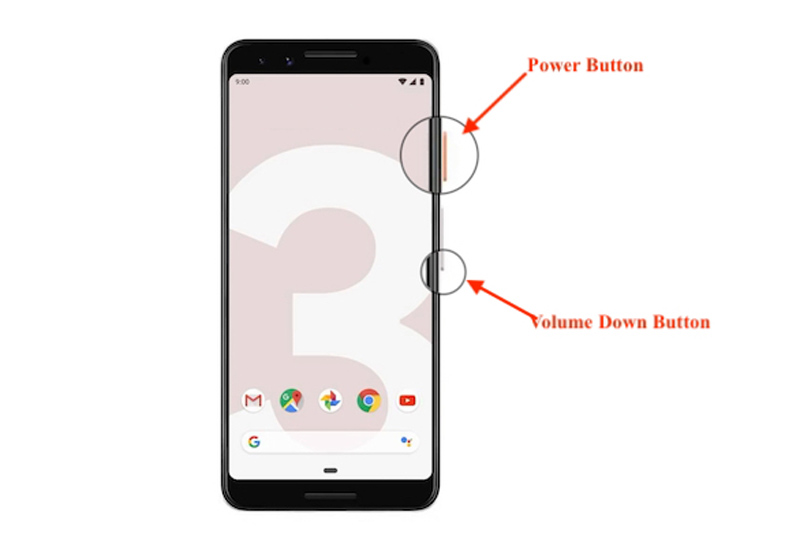
First of all, make sure that your screen shows whatever you want to capture. You have to simultaneously press the Volume Down + Power buttons, and release them after 1 to 2 seconds. Just press Volume Down button once and hold, then press Power button of mobile to take a screenshot. The screen of mobile flashes white which is the indication that your screenshot has been captured. The screenshot will be taken, and there will be a preview of it on your screen.Open the screenshot in your Android gallery or Photos. You can share it with others as well.
Where the Screenshot image is saved on Android?
It is saved in Screenshots folder in your Android Gallery or in Photos app on some devices.
Alternate Methods
Method 1
If your mobile has not captured the screenshot with this method then you can hold Home button and press Power for 1–2 seconds. Your whole screen will be captured. You will get a preview of captured image which you can adjust in modern mobiles. After adjusting the image, you can tap on Save button to save the image in your gallery.
Method 2
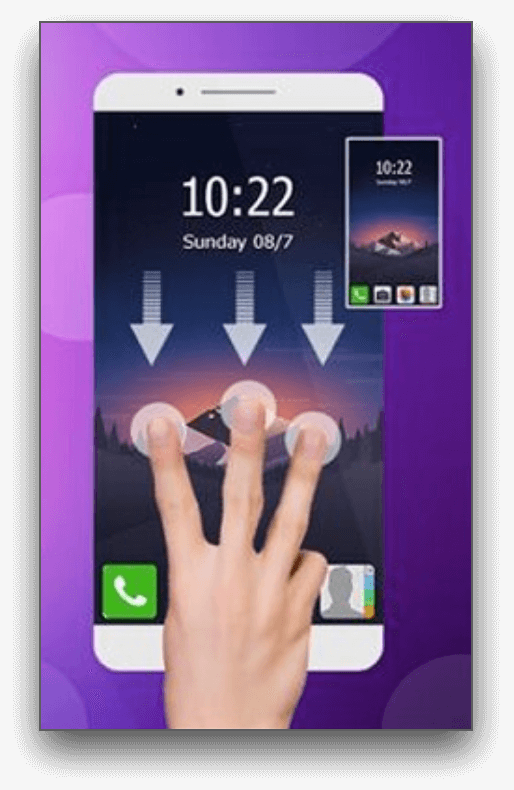
The best and most simple way by just moving your three fingers on the screen from top to bottom. It will capture the screen and you can save the image in your gallery as shown in the image below.
All Methods
Along with these two methods, there is a third method which is not commonly used and most of the people do not know about it. Enable Google voice command and ask google to take a screenshot. The mobile will capture the whole screen without pressing a single button.